
Command Keypad
The Command Keypad provides quick access to essential commands and controls for efficient lighting programming. It includes:
- Record and Update buttons for recording and updating Groups, Looks, Favorites, and Effects
- A powerful command line for entering precise commands and batch operations on numerous Fixtures
- A DMX Tester for troubleshooting and testing outputs directly
Using Commands and the Command Line
The command line allows you to enter precise commands for batch operations on multiple Fixtures. This is where you can type commands to control parameters, apply values, and execute complex operations quickly.
ie. Fixture 1 Thru 10 Color Temperature at 5600 EnterTIP
The command line is one of the most powerful features in Blackout. Learning command line syntax will dramatically speed up your workflow. See the Command Line Overview and Command Line Glossary for comprehensive tutorials and examples.
DMX Tester
The DMX Tester is one of the most useful tools in Blackout for quickly testing and troubleshooting Fixtures—whether you have a massive show with lights hanging on truss or a single light on the ground that's misbehaving. You can test Fixtures without patching them or flash through your selection to verify fixture order and addresses.
The DMX Tester has two modes:
- Fixture Mode - Test patched Fixtures by selecting them and cycling through your selection
- DMX Mode - Test specific Universe and Address combinations, useful for troubleshooting before patching or checking individual DMX channels
Using the DMX Tester (Fixture Mode)
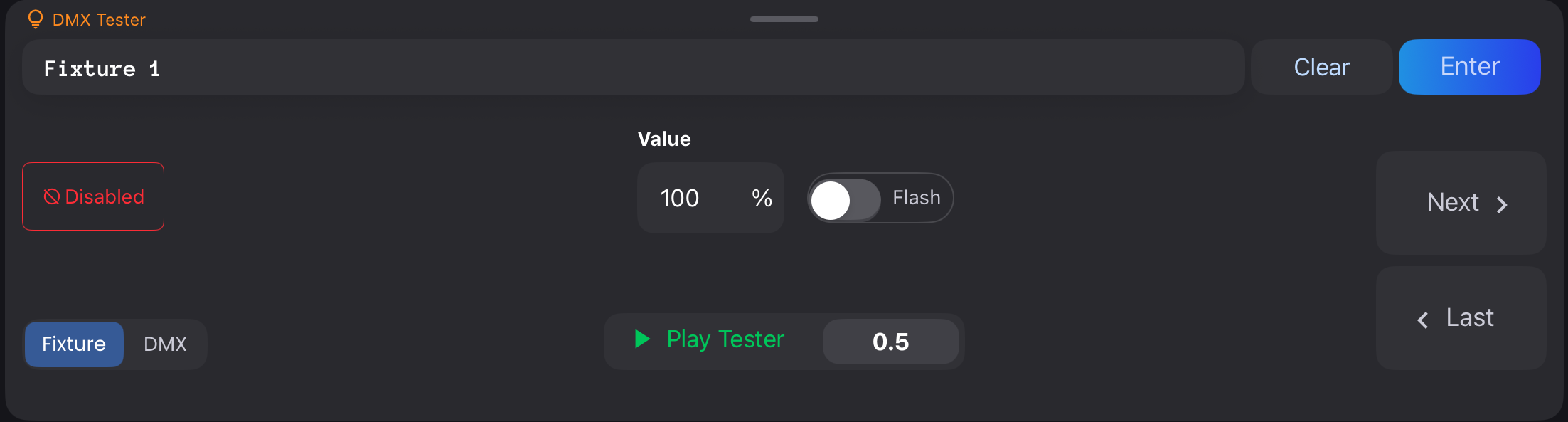
- Select your Fixtures ie. 101 Thru 112 or skip this step to test the entire board
- Tap the
DMX Testerbutton in the Command Keypad - Tap
Enableto bring Fixtures to the intensity percentage you've set - Use
NextandLastbuttons to cycle through Fixtures one by one - Adjust the percentage value as needed to test at different intensity levels
Automating Tests with Play Tester
For hands-free testing ie. Walking up to truss to verify fixture order:
- Make your Fixture selection
- Tap
Enablein the DMX Tester - Tap
Play Testerto automatically cycle through your selection - Adjust the timing (in seconds) to control how fast it cycles through Fixtures
Testing Individual DMX Channels (DMX Mode)
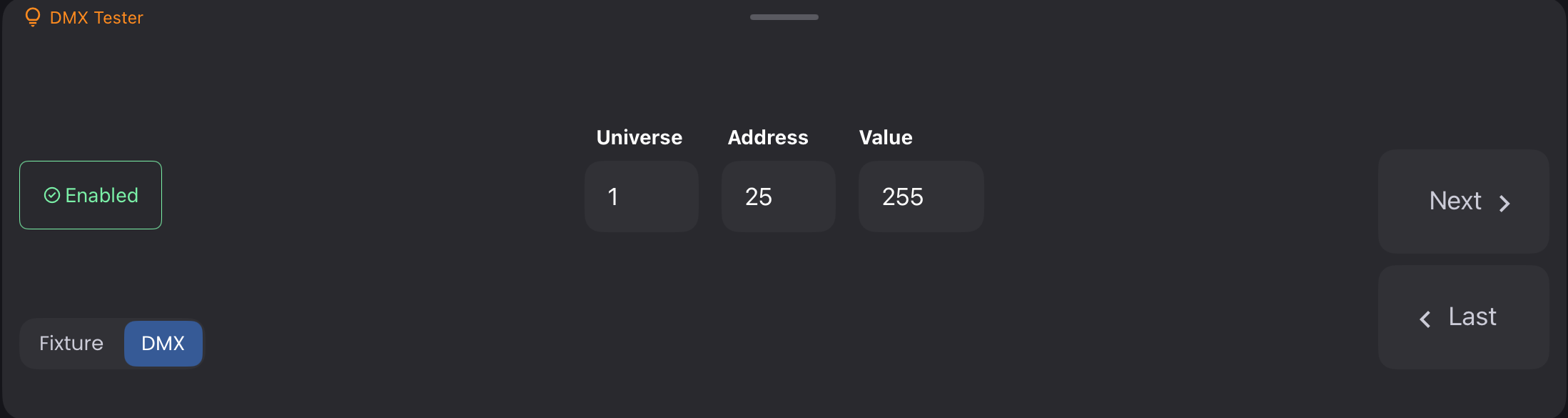
If you have a misbehaving Fixture and need to check individual DMX channels:
- Navigate to the
DMXtab in the DMX Tester - Set the specific Universe, Address, and DMX value (0-255)
- Use
NextandLastto cycle through addresses one by one - This is useful for verifying fixture profiles and troubleshooting specific parameters
Disabling the DMX Tester
When you're done testing:
- Tap
Disablein the DMX Tester, or - Tap the
DMX Testerbutton again to disable automatically
NOTE
DMX Tester values take priority over your programming and will override any values from Looks, Faders, or manual changes. Be sure to disable the DMX Tester or exit out when you're done testing.
More Help
For video tutorials on using the DMX Tester, check out: