
Settings
Now that you understand how Blackout functions, there are a few options you can customize to speed up or personalize your workflow.
Tap the Blackout logo in the upper right of the interface, then tap the Settings tab in the center of the popup.
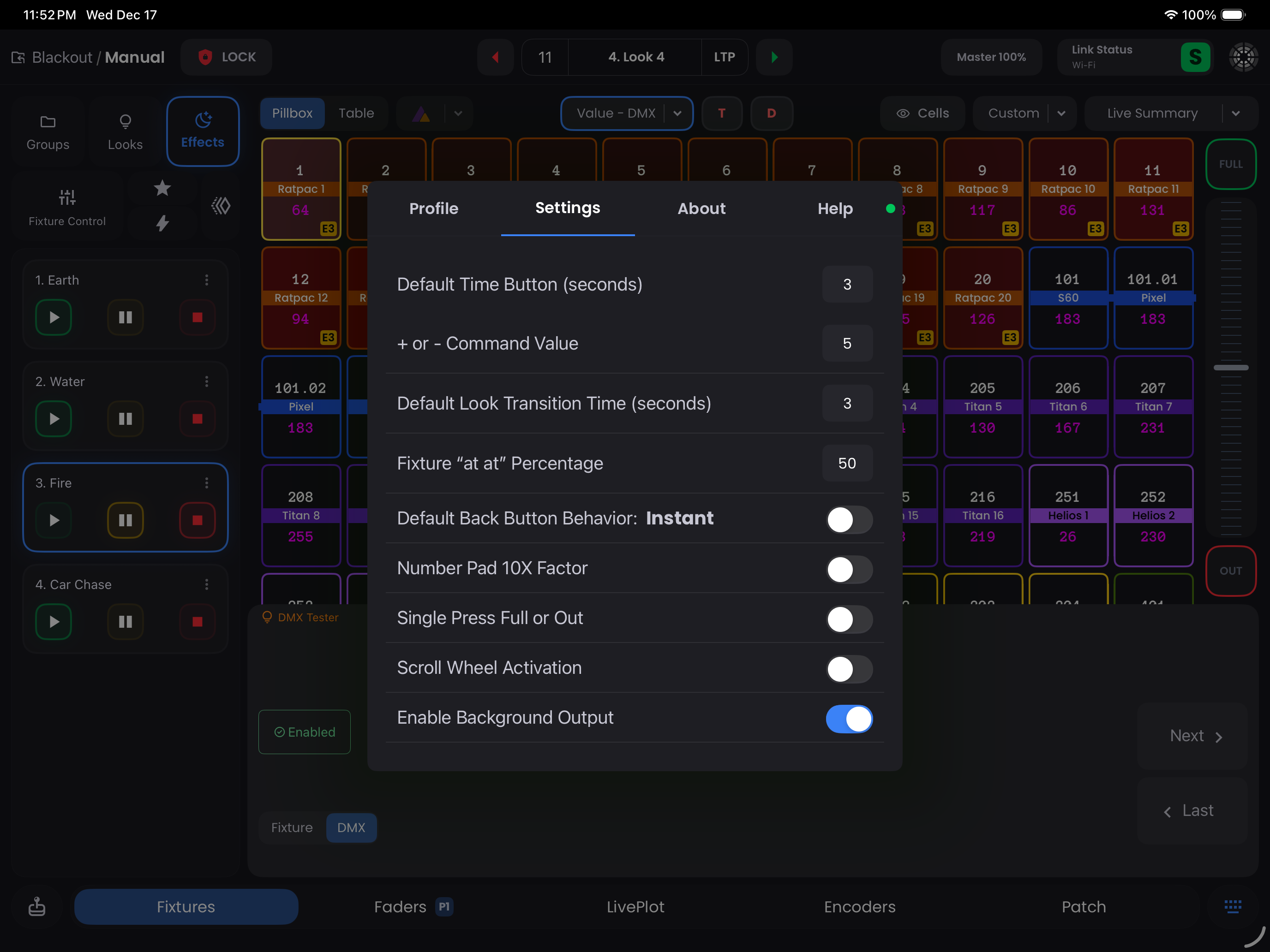
Timing Settings
Default Time Button (Default: 3 seconds)
Change the default fade time for manual values. ie. Fixture 1 At 50 Time Enter would fade Fixture 1 to 50% over 3 seconds
Default Look Transition Time (Default: 3 seconds)
Change the default transition time when recording a Look
Default Back Button Behavior (Default: Instant)
By default, the Back button goes to the previous Look instantly. Toggle this to enable fading with recorded timing
Command Line Settings
++ or -- Command Value (Default: 5 points)
Increment or decrement the current value by this amount. ie. Fixture 1 ++ would increment Fixture 1 by 5 points
Fixture "at at" Percentage (Default: 50% intensity)
Set the default intensity for the Fixture 1 At At command
Number Pad 10X Factor (Default: Off)
When enabled, typing Fixture 1 At 5 Enter sets the value to 50%. You'll need to type 05 to set the level to 5%
Single Press Full or Out (Default: Off)
When enabled, auto-terminates the command line when using Fixture 1 Full or Fixture 1 Out
Control Settings
Scroll Wheel Activation (Default: Off)
Prevents accidental adjustments while carrying the iPad. When disabled, you must press
Atbefore using the scroll wheel. When enabled, any selection can be adjusted instantly with the level wheelEnable Background Output (Default: On)
Allows Blackout to continue outputting DMX when switching apps or putting the iPad to sleep. Note that battery drain can be significant if the app is not closed completely