Top Navbar

The Top Navbar controls what information displays and which Fixtures appear in the main workspace. It's organized into three sections: Views, View States, and Filters.
Views
Choose how Fixture information is displayed:
Pillbox View
Visual grid showing Fixture intensity and status. Each Pillbox represents a Fixture. Fixtures with cells or modules display as dotted cells attached to the main Pillbox (101.01, 101.02) linked to the head Pillbox (101).
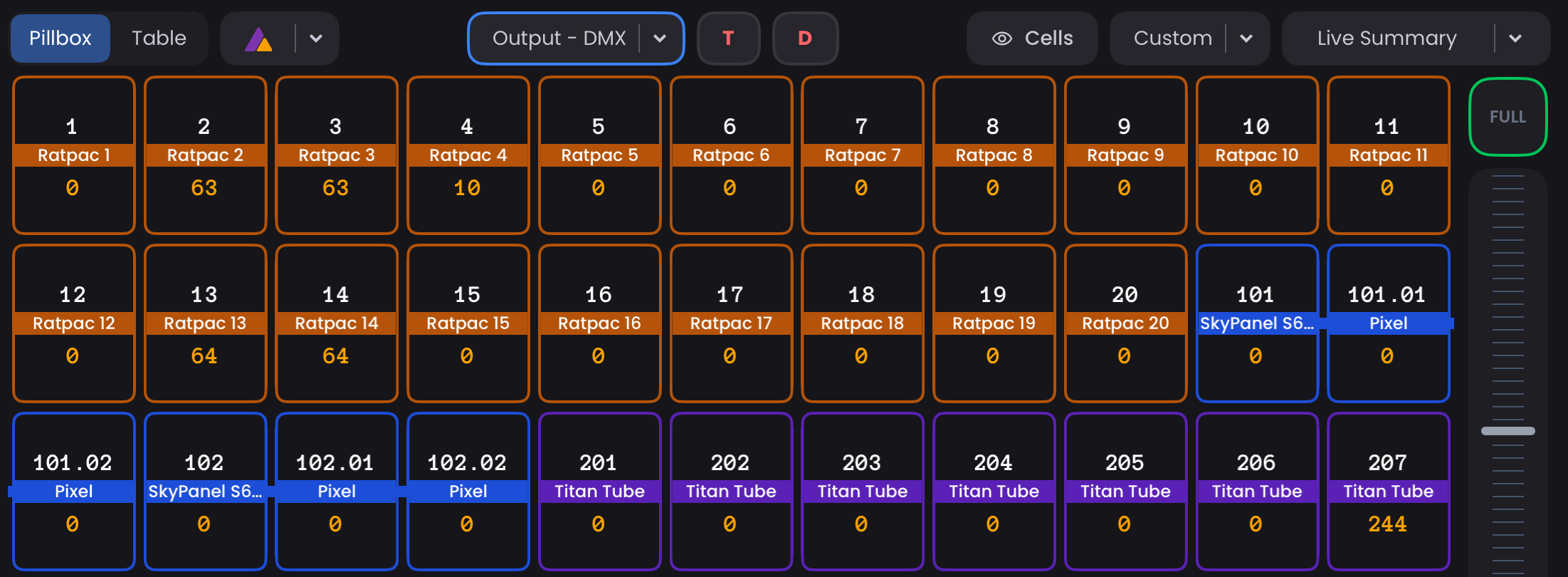
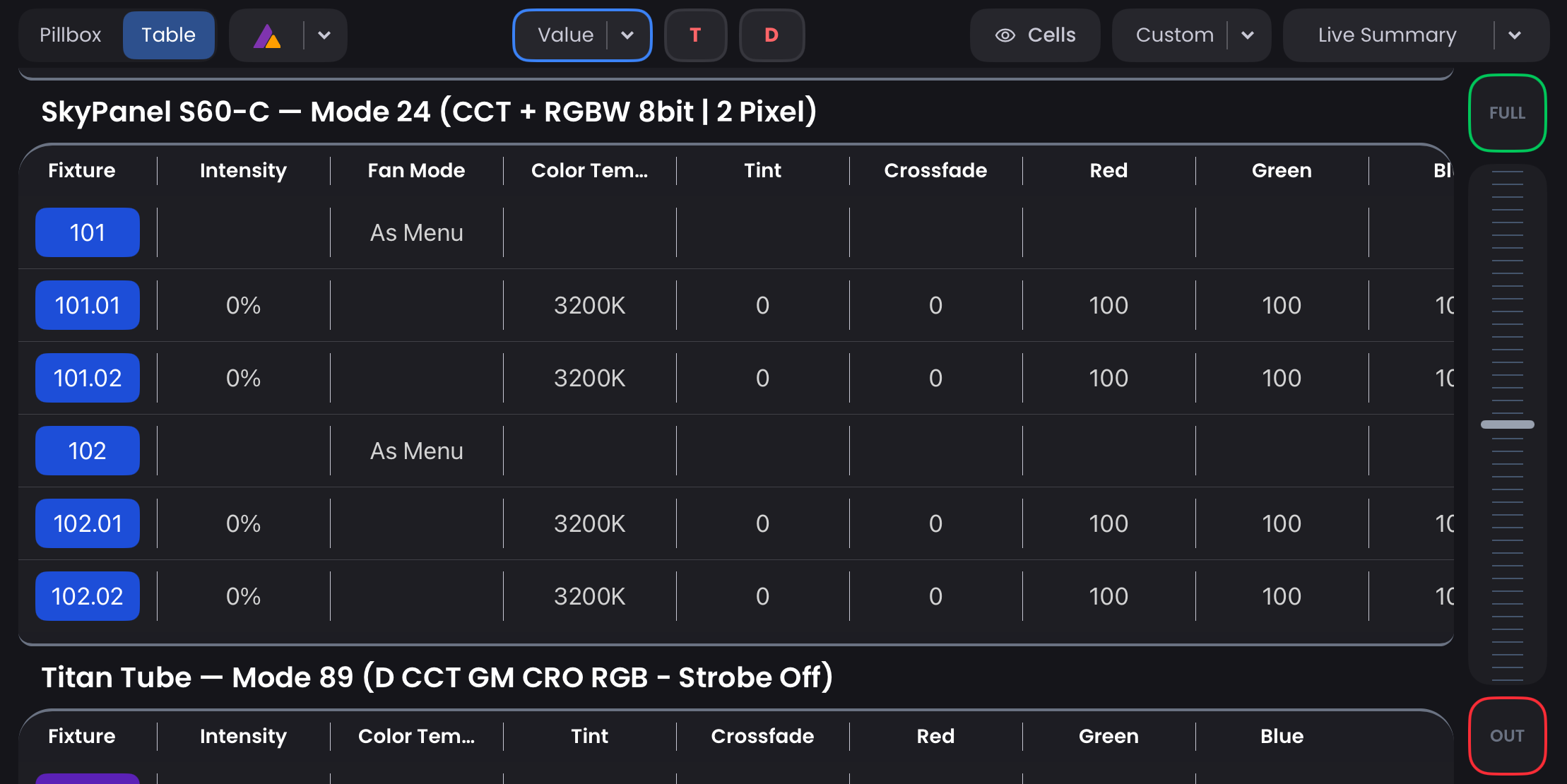
Table View
Detailed spreadsheet showing all parameters for each Fixture. Each row represents a Fixture. Fixtures with cells or modules show as additional rows (101.01, 101.02) directly beneath the head row (101).
 Astera View
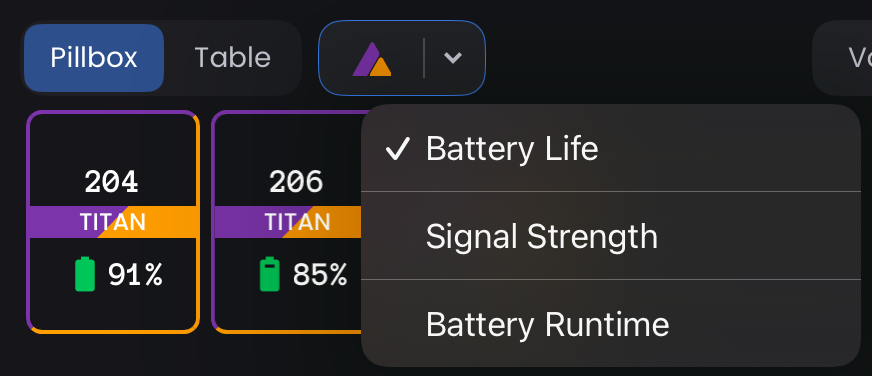
Specialized view for Astera Fixtures when utilizing the Astera Integration. Shows battery status, runtime, and Astera-specific controls.
NOTE
Only displays Astera lights actively connected to your ART7 WiFi box in Blackout (same lights shown in Link Status > Connect to Astera > List of Lights), even if you have additional Astera Fixtures patched.
View States
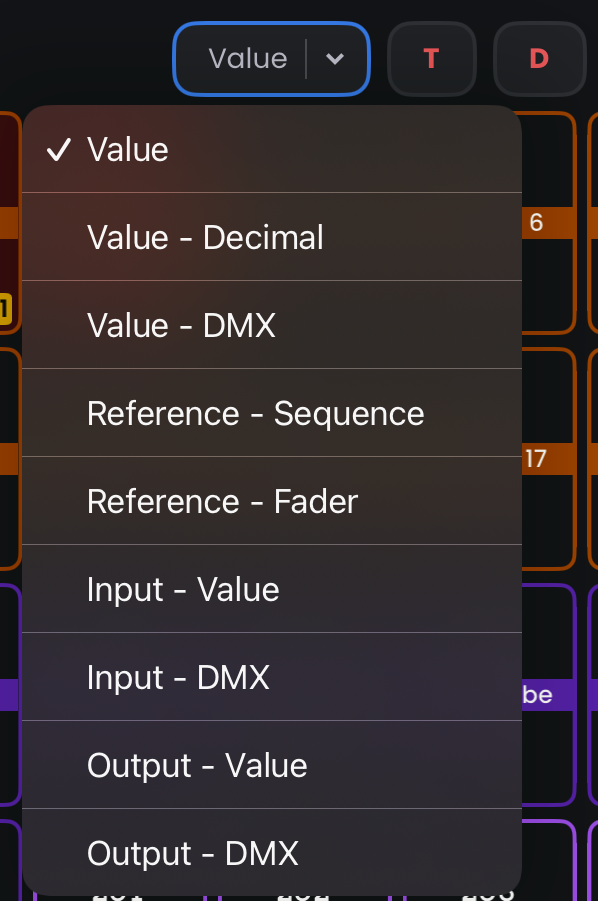
Control what data displays for Fixtures:
- Value - Shows current parameter values as percentages (0-100%) or specific User Values (ie. Color Temperature - 2800k)
- Value - Decimal - Shows current parameter values as decimals for more precision
- Value - DMX - Shows current parameter values as DMX values (0-255 or 0-65535)
- Reference - Sequence - Shows which Sequence each parameter's value originates from
- Reference - Fader - Shows which Fader each parameter's value originates from
- Input - Value - Shows incoming DMX Input values as percentages (0-100%) or specific User Values
- Input - DMX - Shows incoming DMX Input values as DMX values (0-255 or 0-65535)
- Output - Value - Shows outgoing DMX output values as percentages (0-100%) or specific User Values
- Output - DMX - Shows outgoing DMX output values as DMX values (0-255 or 0-65535)
- Time - Shows the individual timing set on Fixture parameters, in seconds
- Delay - Shows the individual delay set on Fixture parameters, in seconds
TIP
Use Output - DMX for diagnostics when troubleshooting DMX issues or verifying exact output values being sent to your Fixtures.
Filters
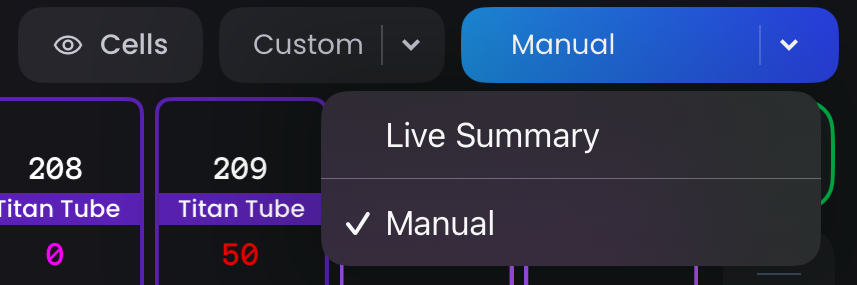
The right side is dedicated to filtering your Fixtures so that only the relevant boxes or rows appear.
- Hide Cells - Hides cells. The head channel will display the highest value of any one cell in it's aggregated parameter columns
- Custom - Toggles showing all Fixtures or only the Fixtures selected in Custom View Presets (see below)
- Live Summary - Only Fixtures currently with an Intensity > 0 are displayed
- Manual - Only Fixtures currently with a manual value on any parameter are displayed
Custom View Presets
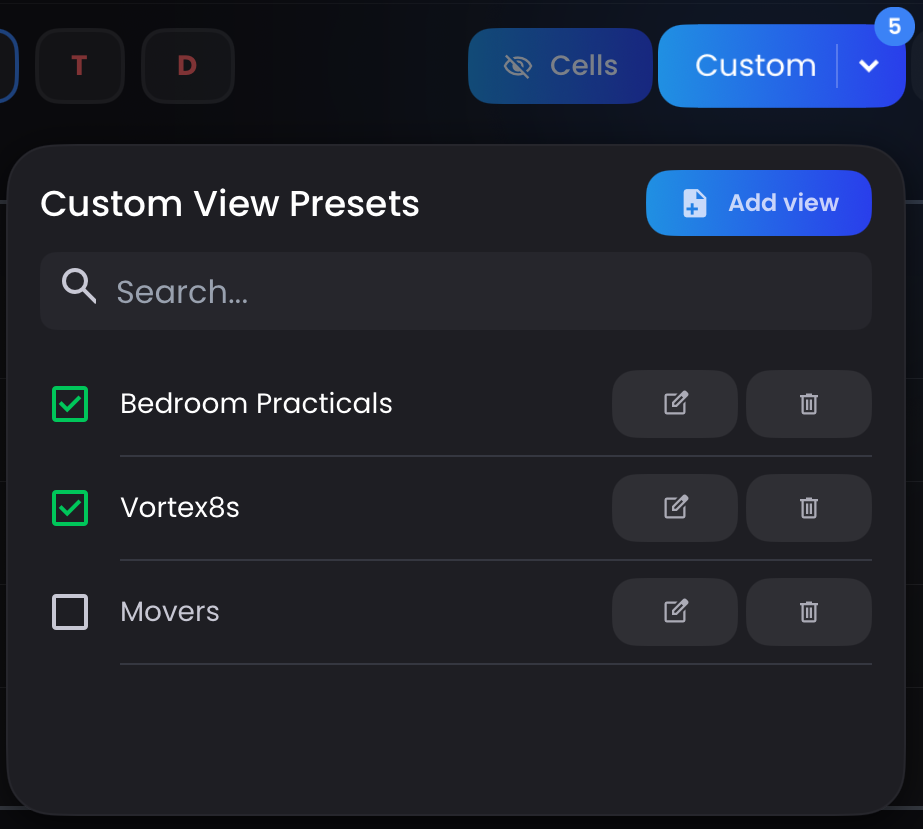
Custom View Presets allow you to save specific Fixture selections and quickly switch between them. This is ideal for focusing on particular fixture groups during programming, creating operator views, or maintaining separate fixture layouts for different parts of your show.
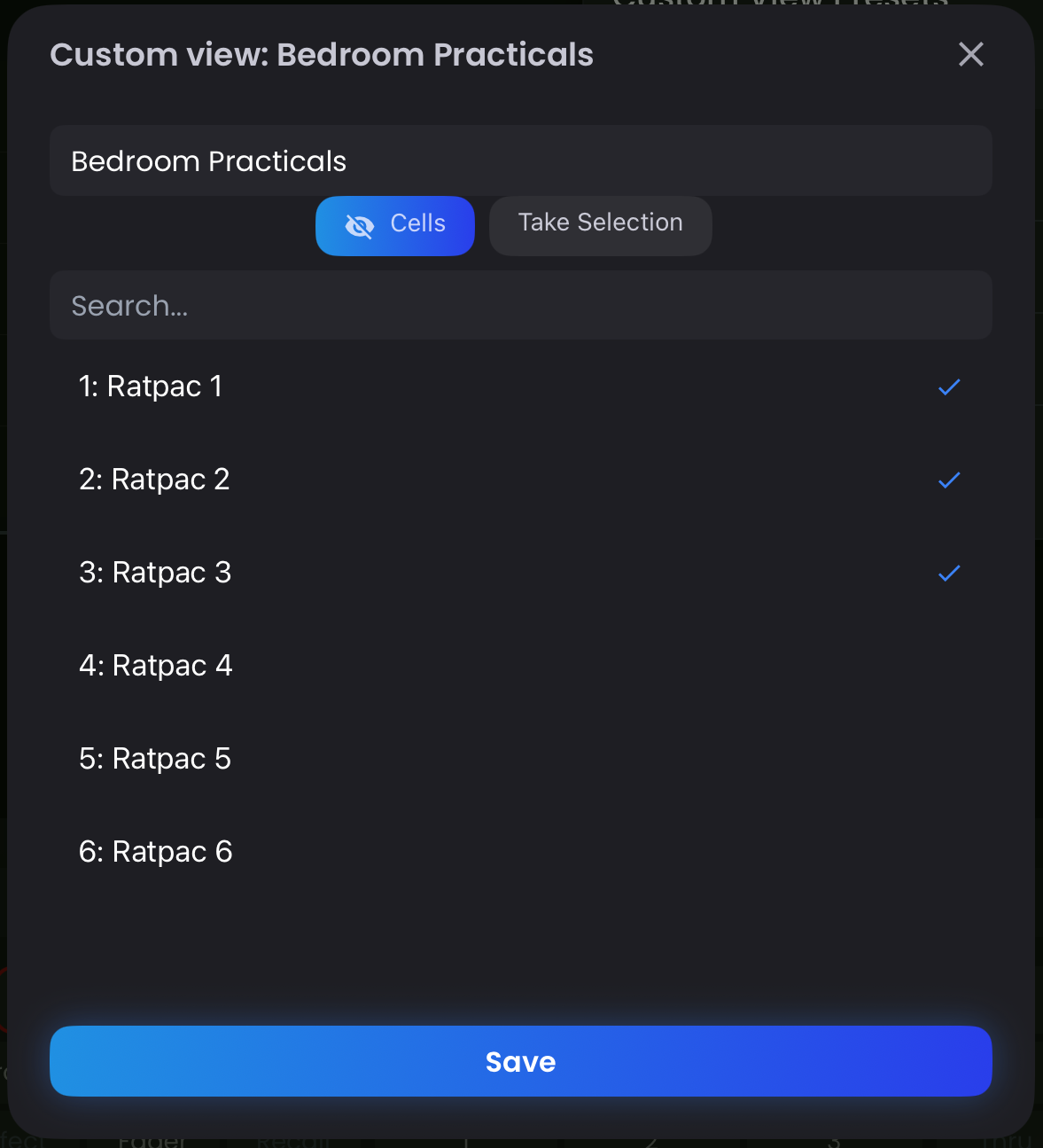
To create a Custom View Preset:
- Tap the right side of the Custom View button (where the down arrow is) to open the preset dropdown
- Tap
Add Viewto create a new preset - In the popup, either use the
Take Selectionbutton to save the Fixtures you currently have selected or choose them from the list below - Optionally, enable
Hide Cellsto also save the cell visibility filter with this preset - Name your preset and save
Managing Custom View Presets:
Once saved, your presets appear in the Custom View dropdown. Each preset row includes:
- edit_square Edit - Modify the preset name or fixture selection
- delete Delete - Remove the preset
To activate Custom View Presets:
- Select the checkboxes next to the presets you want to use. You can select multiple presets to combine their Fixture selections
- Tap the
Custombutton in the Filters bar (Top Navbar) to toggle the custom view on/off
The Custom button acts as a toggle, allowing you to quickly switch between your custom arrangement and all Fixtures for fast workflow changes during programming.