
Favorites
Favorites are used to store and quickly recall frequently used Fixture Parameters. They are a fundamental part of efficient lighting control and an essential building block of Looks.
WARNING
While Favorites are similar to "Presets" or "Palettes" on other consoles, they are not currently referenced when recording a Look. Favorites are used solely to quickly recall fixture parameters at the time they are applied. This means if you update the Favorite, your Looks will not change.
Favorite Types
There are three types of Favorites: Universal, Global, and Fixture Specific
Universal (U):
- The saved parameters in this Favorite can be applied to any Fixture that has matching attributes.
Selection Rule
Only one single fixture can be selected when recording a Universal Favorite. If multiple fixtures are selected with different parameter values, Blackout cannot determine which values to save.
Global (G):
- Global Favorites are tailored to specific Fixture Types and modes. They will only apply to Fixtures of the same type/mode that are patched.
Selection Rule
Global Favorites require exactly one fixture of each type in your selection. You can include multiple different fixture types ie. One Skypanel S60 Mode 1, one Skypanel S60 Mode 6, and one Astera NYX Bulb Mode 89, and they will automatically merge into one Global Favorite. However, if you select multiple fixtures of the same type ie. Two Skypanel S60 Mode 1s, Blackout will create a Look Favorite instead.
NOTE
A Skypanel Mode 1 that you saved color from into a Global Favorite will only apply to another Skypanel Mode 1 and not to a Skypanel Mode 6.
Look (L):
- Look Favorites store both the selection and saved parameters. A selection is not required when applying them, enabling true one-touch recall.
Selection Rule
Any selection will work for Look Favorites, including multiple fixtures of the same type.
Even though a Universal Favorite may seem like the obvious default choice, because each fixture is vastly different in their LED color engine, colors may appear different when applying to different fixtures. ie. A Skypanel S60 Universal Blue Favorite will look different when applied to a Kino Flo Freestyle 41.
Global Favorites can allow for better organization in that it allows you to match two different fixtures' color (ie. A Skypanel S60 Mode 1, S60 in Mode 3, and a Kino Flo Freestyle 41 Mode 12) could all be matched to a preferred RED color by eye and then saved as a Global Favorite). The next time you need that RED, any or all of those fixture types could be selected and applied their specific RED values to get that common color.
Recording Favorites
To record a Favorite simply press Record on the command keypad after making a selection and navigate to the Favorites tab.
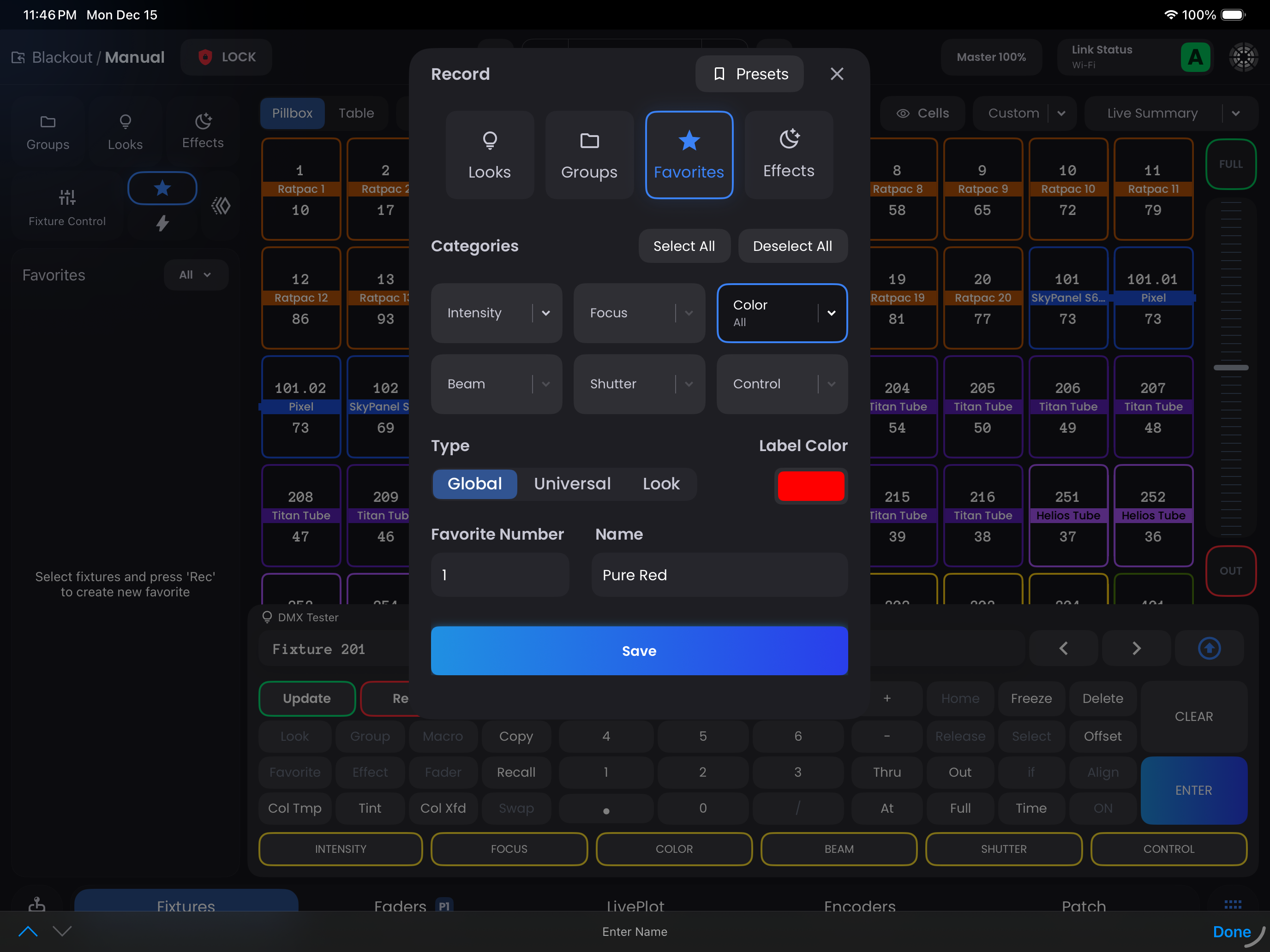
Parameter Selection
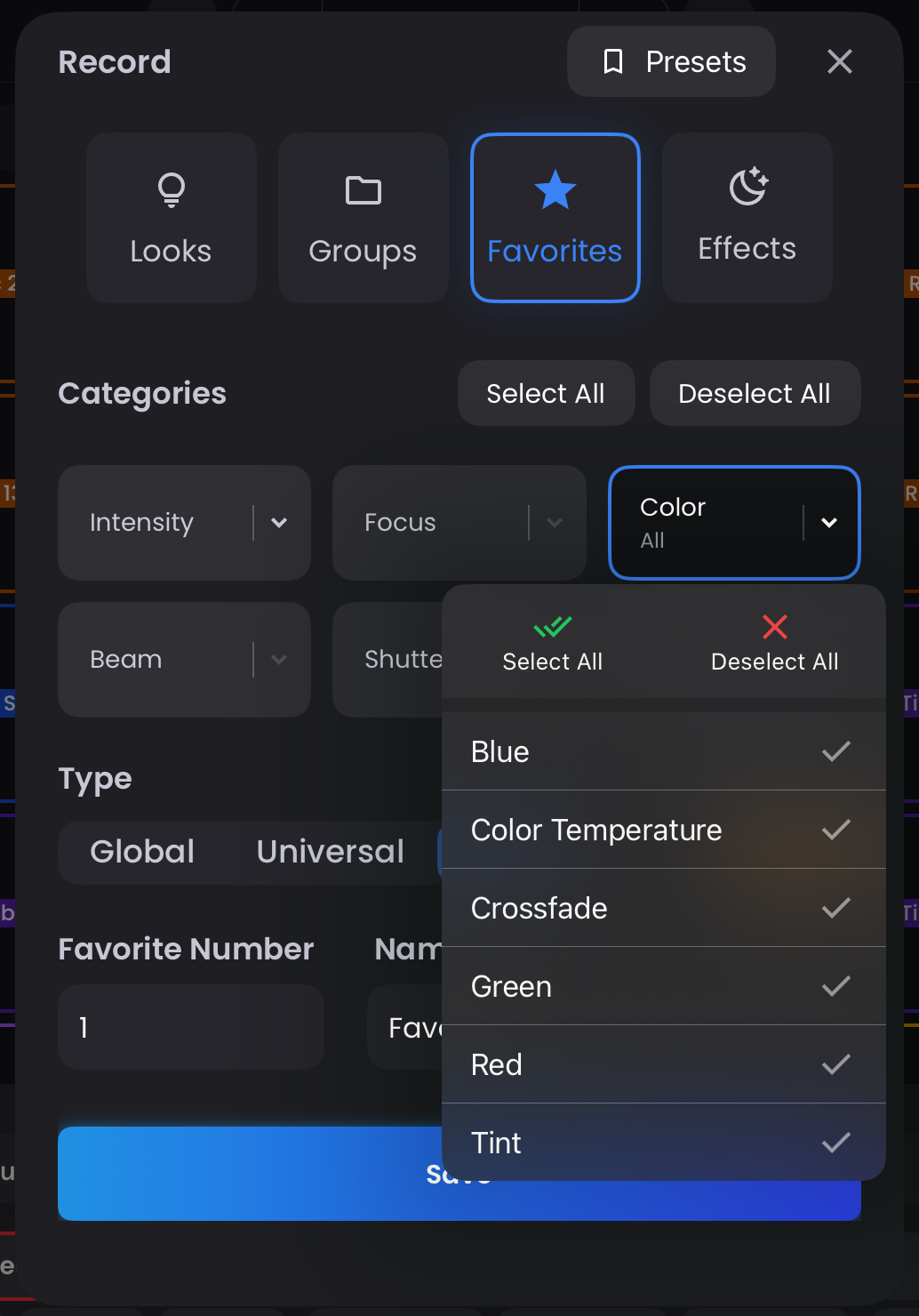
There are 6 Parameter Categories available. For each category, you can either:
- Tap the category button to quickly select all parameters within that category
- Use the dropdown to select individual parameters
Parameter Categories:
- Intensity ie. Dimmer, Strobe, Shutter
- Focus ie. Pan, Tilt, Zoom, Focus
- Color ie. RGB, CMY, HSI, xy, tint, color wheels, color presets
- Beam ie. Iris, frost, prism, gobos, effect wheels, animation wheels
- Shutter ie. Frames, Frame Angles, Frame Rotation
- Control ie. Control, Fan Mode, Mode Select
You can then choose your Type, a quick color label, and then Number and Name your Favorite.
Form Presets
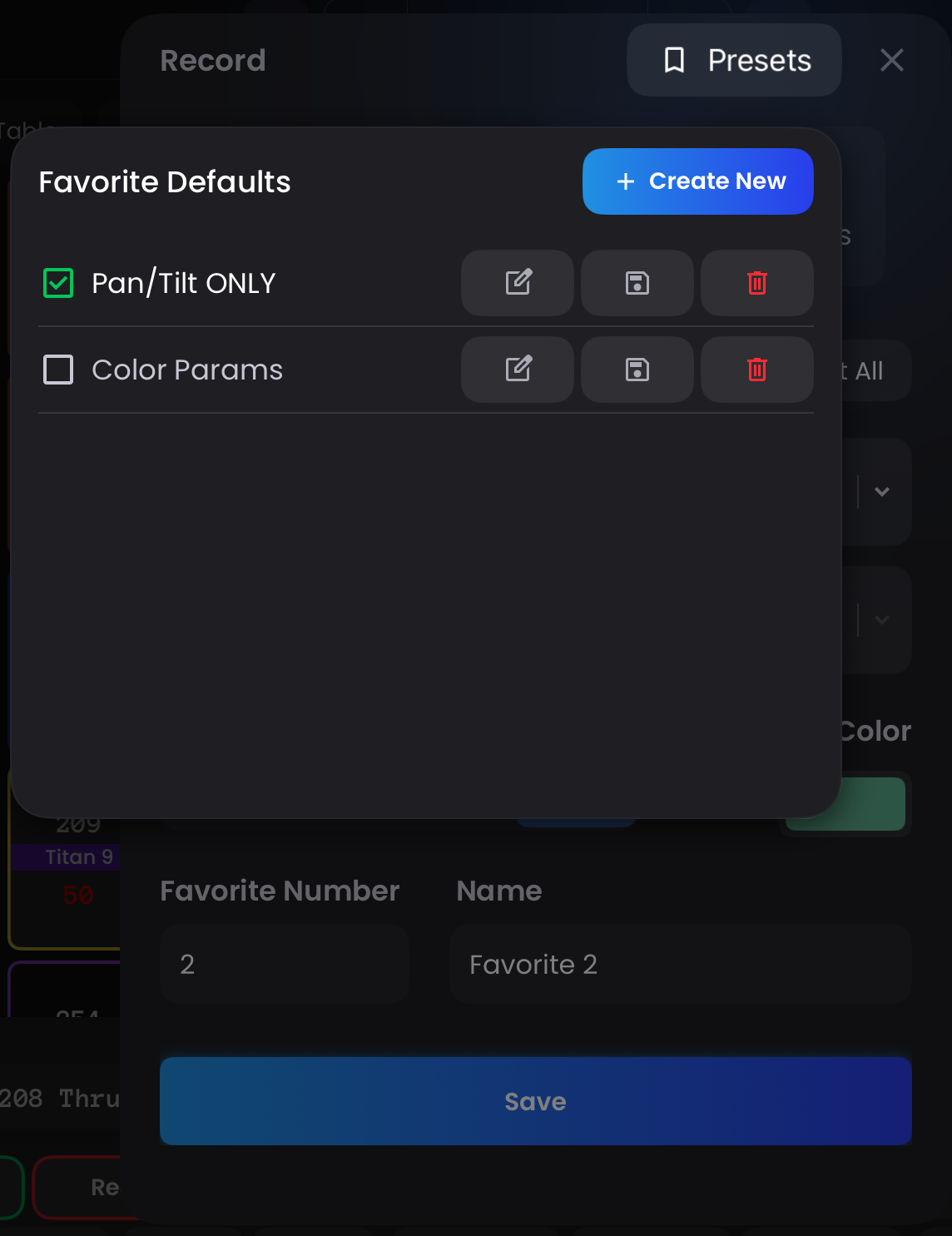
The Presets dropdown at the top of the form (next to the close button) allows you to save your parameter selection defaults for quick access.
Creating a Preset:
- Tap the Presets button to open the dropdown
- Tap
Create New - Enter a Name/Label for your preset
- Your preset now appears in the list
Using Presets:
- Tap any preset to apply its parameter selections to the current form
- Check the checkbox next to a preset to set it as the default for next time you open the Favorites tab
- Edit edit_square, Update save, or Delete delete buttons appear to the right of each preset
INFO
Favorites can not store references to other Favorites.
Updating Favorites
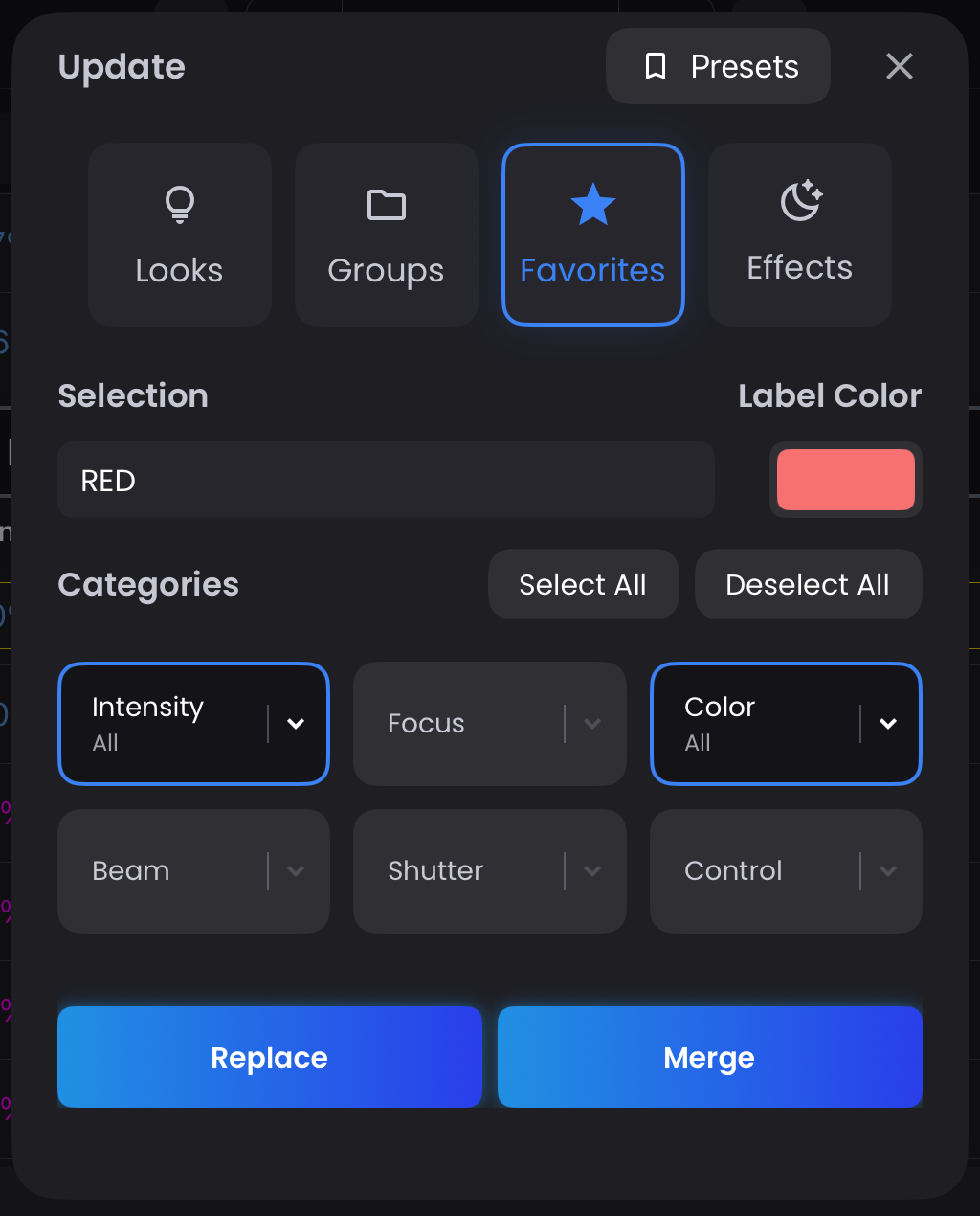
To add additional Fixture Types to an existing Global Favorite or update parameter values in any Favorite Type:
- Select the new Fixture(s) and dial in your desired values
- Press Update on the command keypad
- Navigate to the
Favoritetab and select your existing Favorite - Select the parameter categories you want to merge (be sure to include all relevant parameters like Crossfade or Mode Select)
- Choose Merge to combine the new data into your existing Favorite or Replace to overwrite the Favorite
Managing Favorites
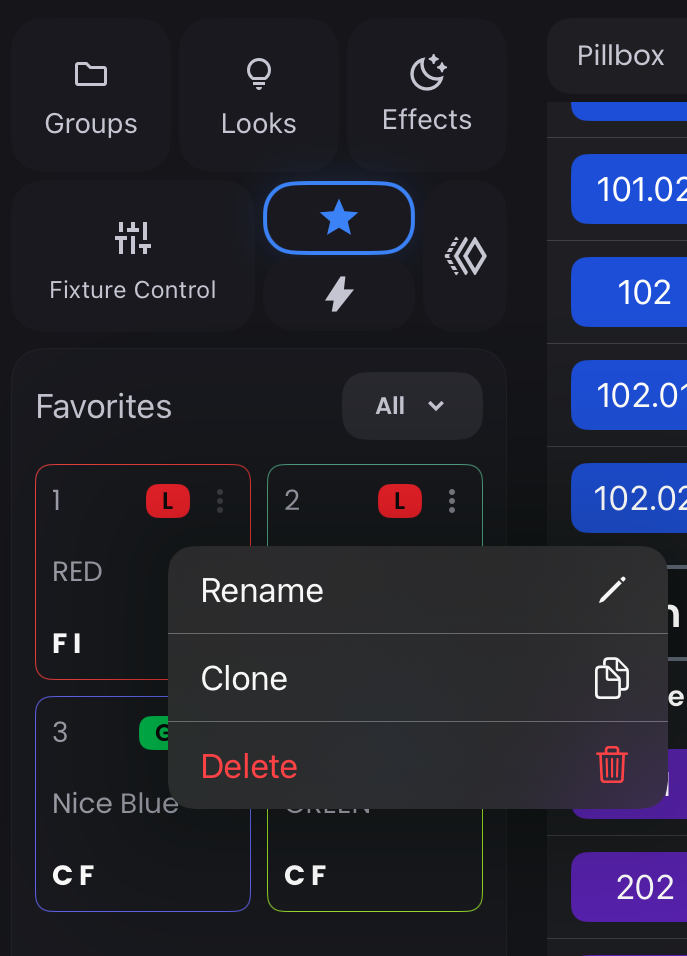
You can rename, clone, or delete a Favorite by tapping on the three-dots (more_vert) on the Favorite in the Sidebar.
Favorites Expanded
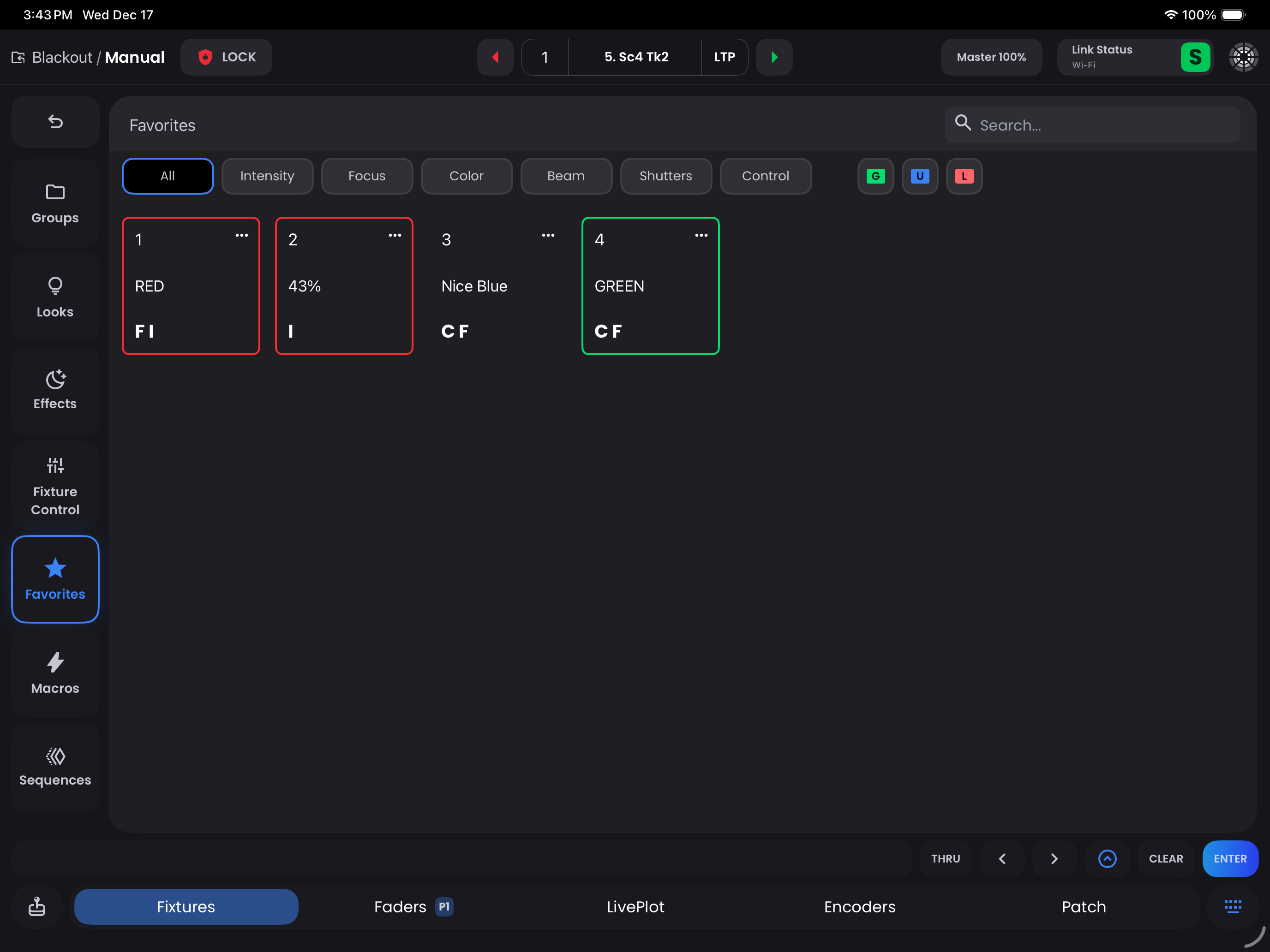
Double-tap the Favorites tab or swipe it right to open Favorites Expanded. This full-screen view lets you:
- Rename, clone, delete, or edit a Favorite by tapping the three-dots ··· on any item
- Filter your list using the toolbar at the top:
- Select specific Parameter Categories
- Filter by Favorite Type (Global, Universal, Look)
- Quickly search for a Favorite by name or type
TIP
The key to rapid programming and a streamlined show is in meticulously setting up your Favorites