
Visual Patch Screen
After tapping the Patch (#) button next to your chosen Fixture profile, the Visual Patch screen appears where you configure the DMX addressing and patching details for your Fixtures.
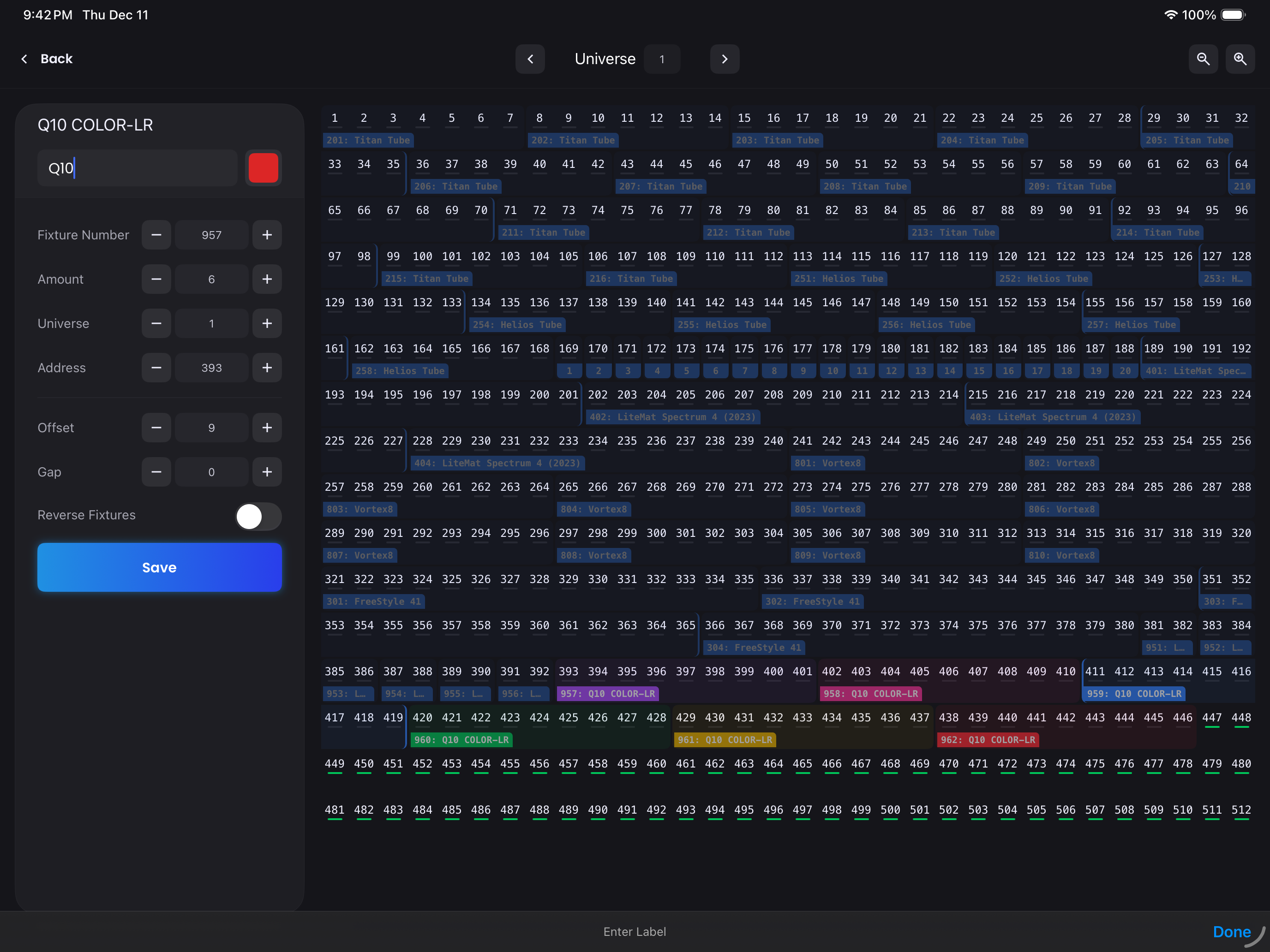
Patch Configuration
Label & Color
- Label - Name your Fixture(s) which will display in the center of the Pillbox in Fixtures
- Color - Tap the color circle to change the Pillbox outline color for visual organization
Auto-Incrementing Labels
When patching multiple Fixtures, the label like Skypanel will automatically increment (Skypanel 1, Skypanel 2, Skypanel 3...)
Patch Parameters
- Fixture - Choose your Fixture starting number. This is the identifier you'll use to select and control the Fixture 101, 201, 301
- Amount - Patch multiple Fixtures at once by specifying the quantity here
- Universe - The DMX universe for output. Blackout automatically wraps to the next universe if the patch exceeds 512 channels
- Address - The starting DMX address (1-512) for your patch
- Offset - Gap between patched Fixtures in DMX addresses
- Defaults to the profile's DMX footprint for sequential patching
- Useful when your addressing scheme uses specific spacing
Offset Example
Your lighting team addressed Titan Tubes every 10 channels, but the profile only uses 8 channels. Set Offset to 10 and Blackout will match your addressing scheme:
- Fix 201 → Address 1
- Fix 202 → Address 11
- Fix 203 → Address 21
Reverse Channels
Toggle this option to reverse the patch order. Useful when physical Fixtures are laid out backwards from your intended programming order.
| Fixture | Address |
|---|---|
| Fix 101 | 1 |
| Fix 102 | 11 |
| Fix 103 | 21 |
| Fixture | Address |
|---|---|
| Fix 101 | 21 |
| Fix 102 | 11 |
| Fix 103 | 1 |
Visual Layout
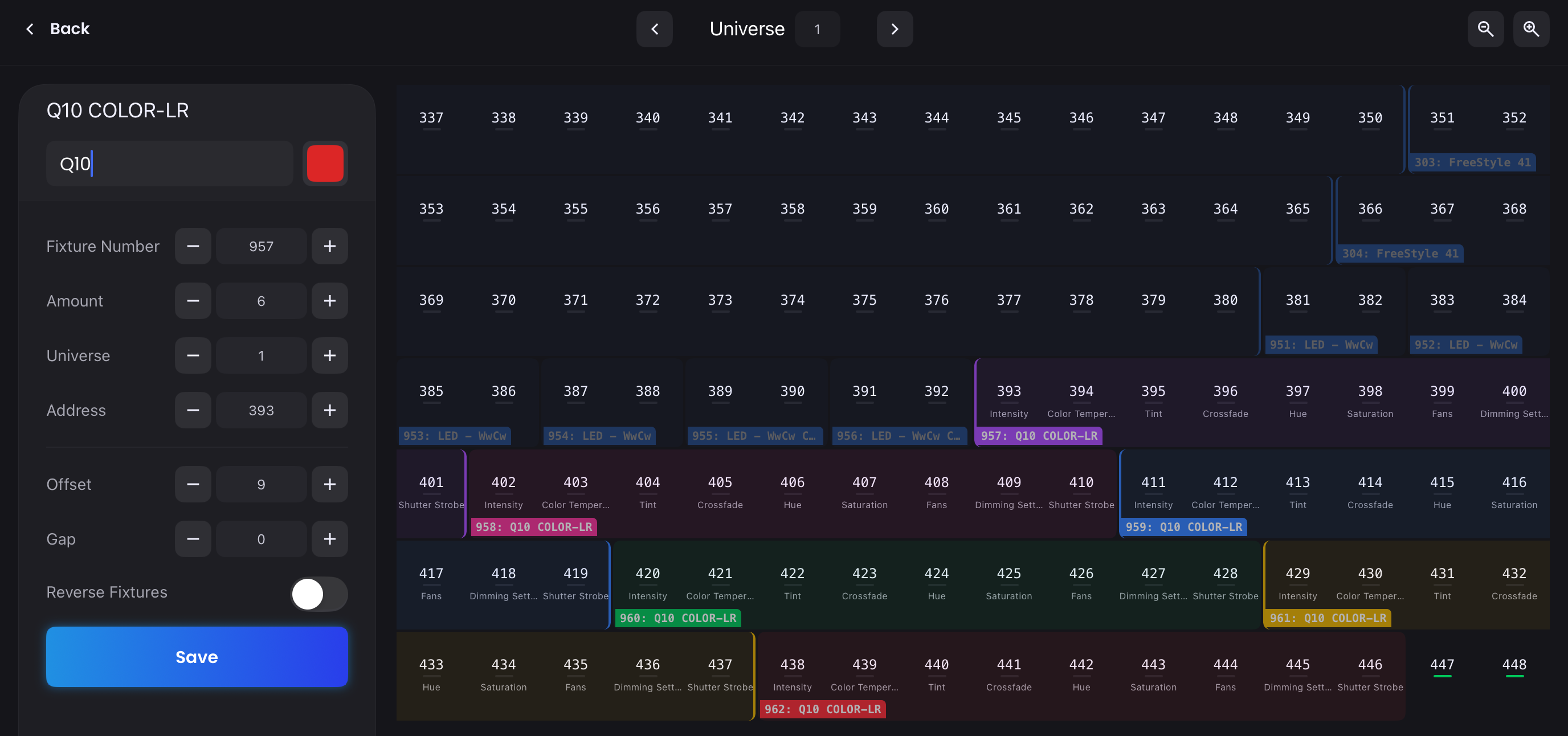
The right-hand side shows a visual representation of all patched Fixtures in the selected universe. This layout updates dynamically as you adjust settings in the left sidebar.
Interactive Features:
- Tap any address to set it as the new starting address
- Visual conflicts highlight when Fixtures overlap on the same channels
- Rainbow color-coded to easily see the Fixtures you are patching
- Zoom controls in top right to view Fixture parameters and DMX address alignment
Fixture Numbering Best Practice
Use a new 100-level for each Fixture Type to keep your patch organized:
- ARRI Skypanels - 101-105
- Astera Titan Tubes - 201-208
- Kino Freestyles - 301-303
- ...
- Moving Lights - 901-912
This makes selection and programming more intuitive.
Saving Your Patch
When you're satisfied with the configuration, tap Save to add the Fixtures to your Project. The Fixtures will appear in your Patch Table and be ready to control in Fixtures.