
External Devices
The External Devices menu allows you to configure external control integrations with Blackout, including MIDI and OSC (Open Sound Control) protocols. These connections enable hardware controllers, keyboards, and other software to trigger commands, control parameters, and automate workflows in Blackout.
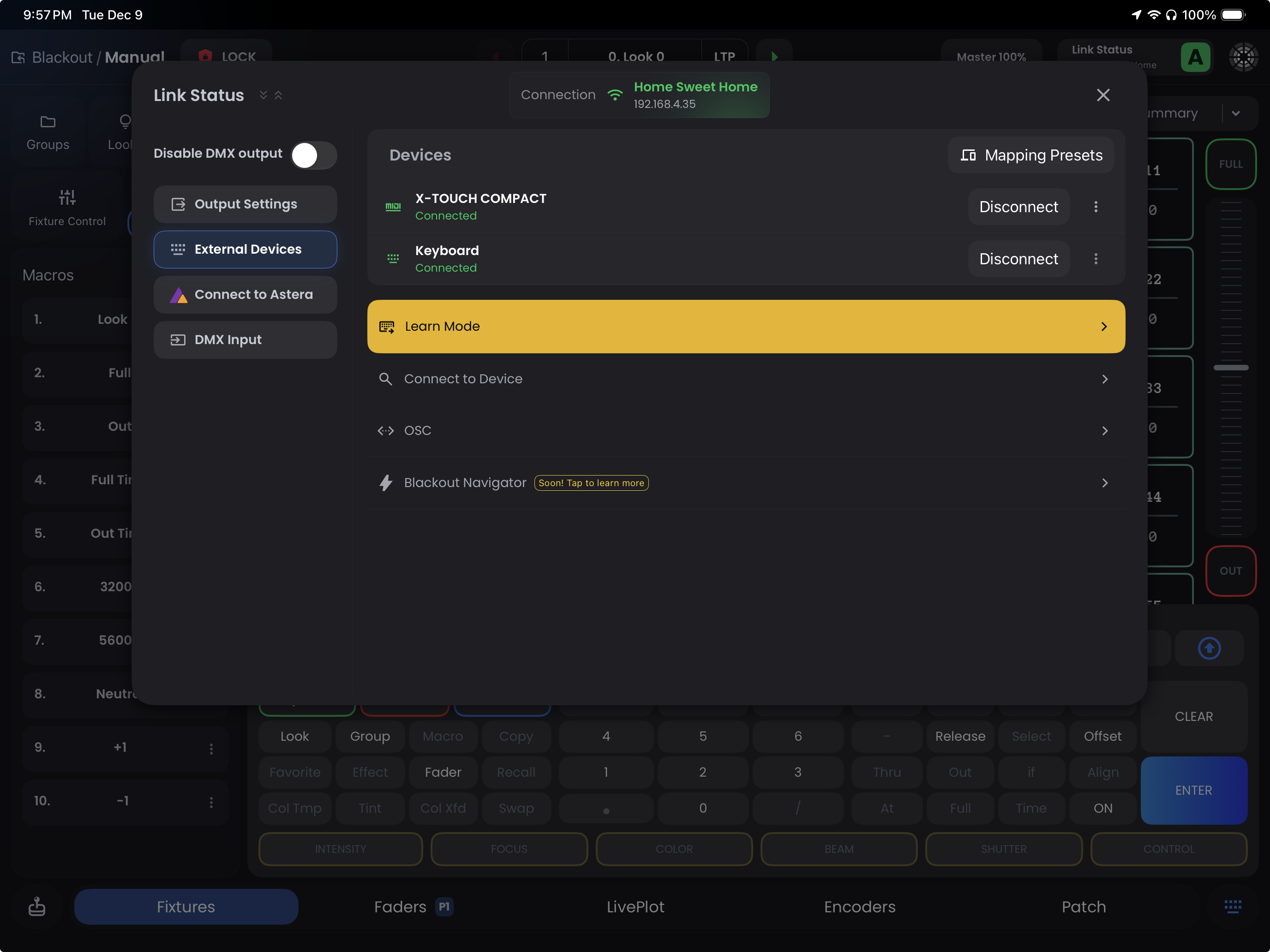
Overview
- Devices - a list of your most recently connected devices for quick access and reconnection
- devices Mapping Presets (button) - load or save configuration presets for instant switching of setups
- keyboard_external_input Learn Mode (formerly MIDI Learn) - map physical controls from MIDI devices (keyboards, control surfaces, faders, buttons) and OSC commands directly to Blackout functions
- search Connect to Device - search and connect to devices that Blackout can detect through USB, bluetooth, or the network
- settings_ethernet OSC - configure OSC connection settings
Devices
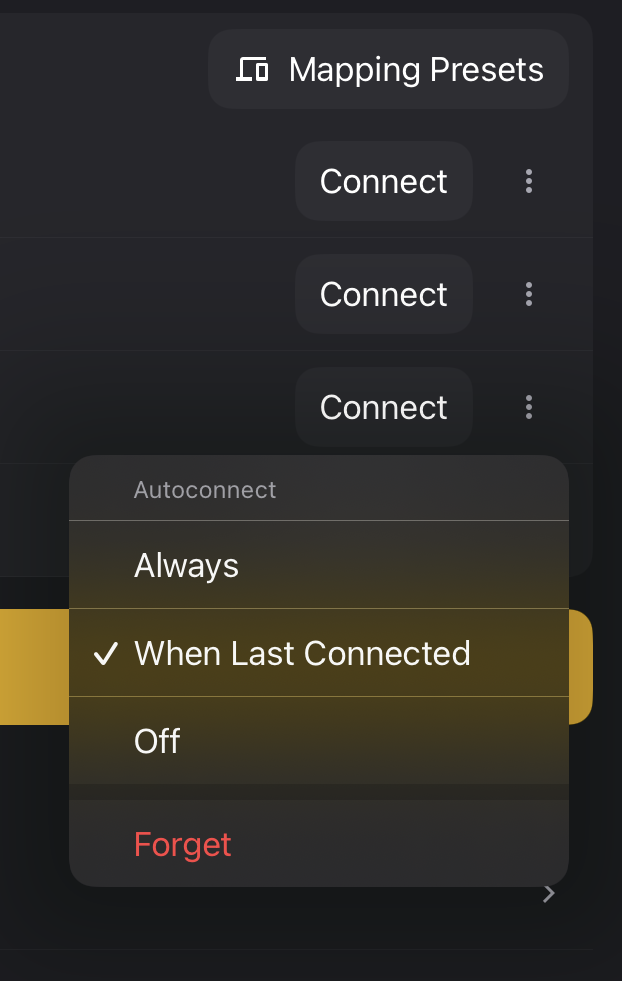
Your list of recently connected devices shows each device with a Connect or Disconnect button for quick access. Tap the more_vert menu to configure auto-connection behavior:
- Always - Automatically connect when device is detected
- When Last Connected (default) - Reconnect only if it was connected when Blackout closed
- Off - Never auto-connect
- Forget Device - Remove from the list entirely
Mapping Presets
Save and load complete Learn Mode mapping configurations. This allows you to quickly switch between different controller setups, share mappings with other operators, or maintain separate configurations for different shows.
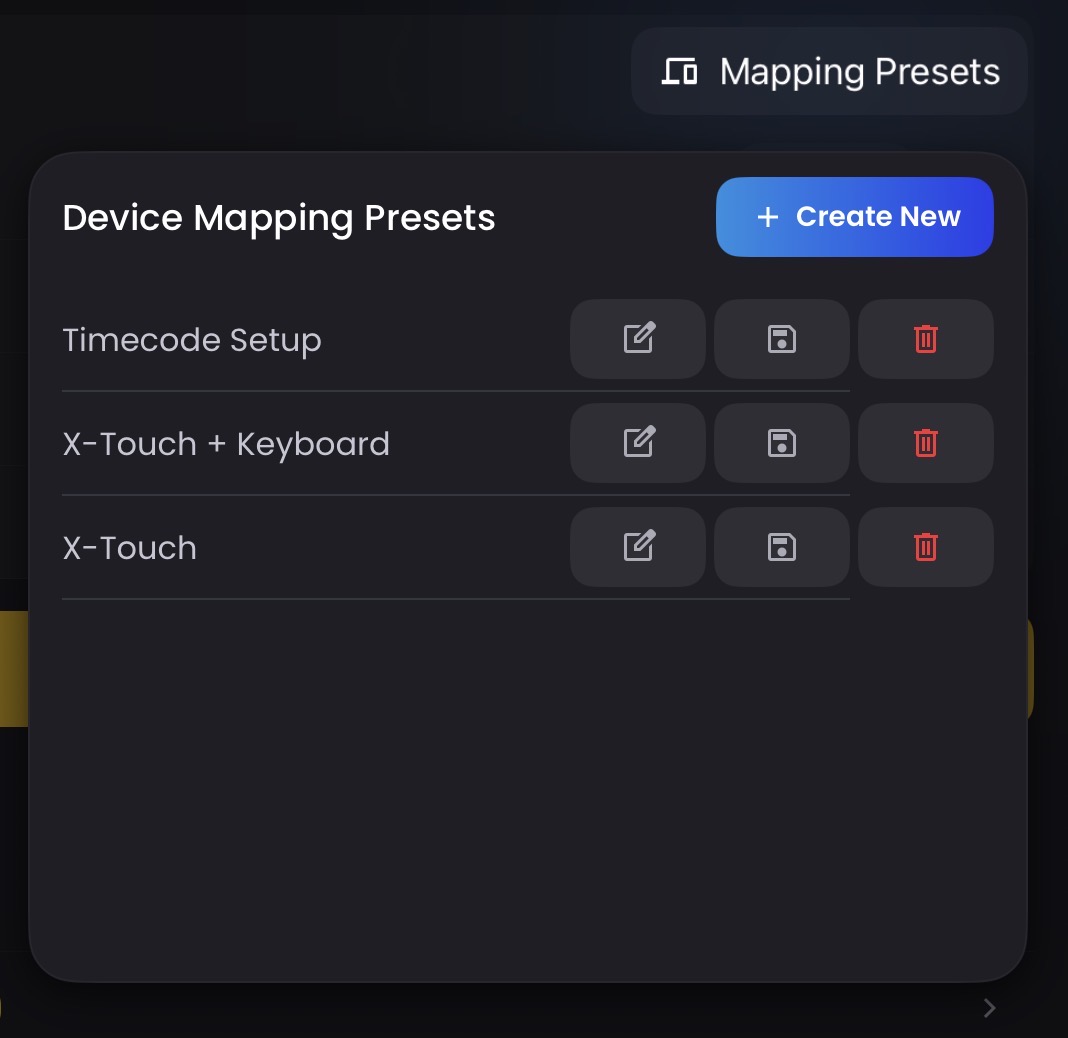
Tap on the + Create New button to save the configuration you are currently using and name it. Once saved it will show up in the Mapping Presets list.
- edit_square - rename the preset
- save - save/overwrite this preset
- delete - delete the preset
To load a preset, simply tap on the name of the preset.
Learn Mode
Open the Learn Mode interface to map MIDI and OSC controls to Blackout functions. See the full Learn Mode section below for complete setup instructions and use cases.
Connect to Device
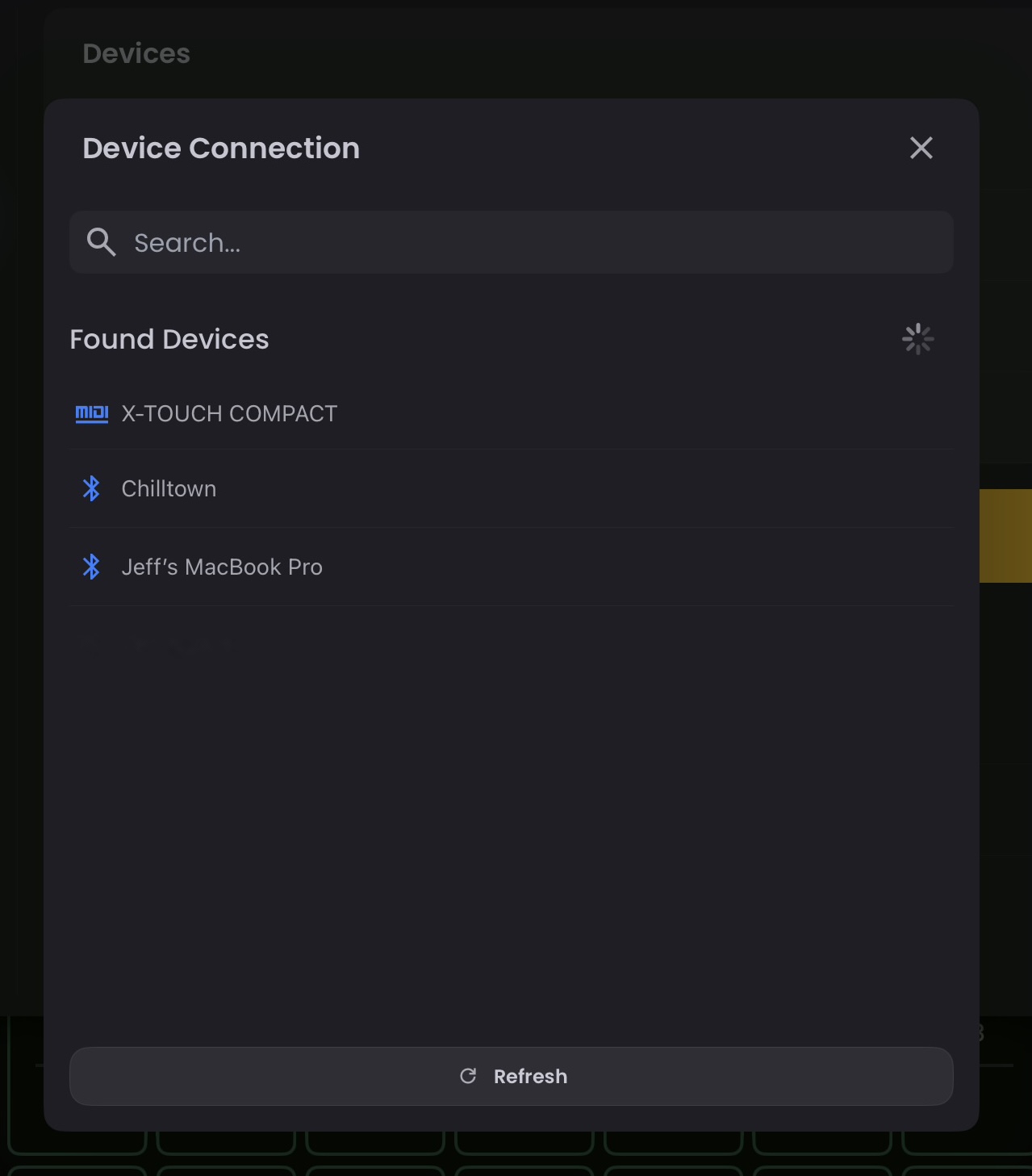
Search for and connect to devices that iPadOS can detect through USB-C, Bluetooth, or network connections. This includes MIDI controllers, keyboards, and other compatible hardware. Simply tap on a device to connect.
OSC
Configure OSC network settings including IP addresses, ports, and message formats. Learn more about OSC configuration →
Using Learn Mode
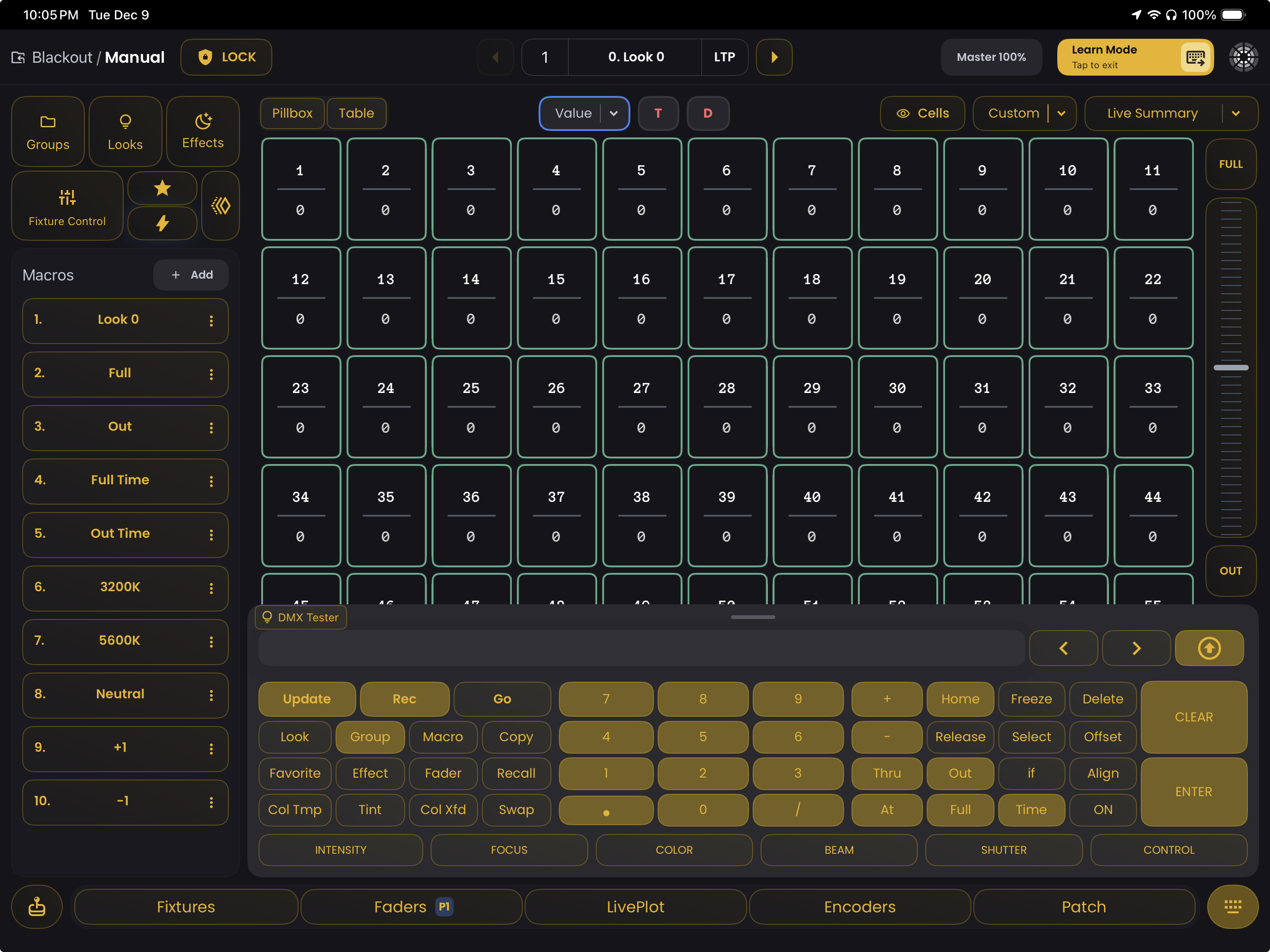
Learn Mode (formerly MIDI Learn) allows you to map physical controls from keyboards, MIDI devices, and OSC commands directly to Blackout functions. This enables tactile, hands-on control of your lighting setup without touching the iPad screen.
How Learn Mode Works:
- Connect your MIDI device or configure OSC settings
- Tap
Learn ModeinLink Status→Connect to Device - The entire app enters learning mode - all learnable elements display a yellow border
- Tap any Blackout button, fader, or control you want to map
- Press the corresponding button/fader on your controller or send an OSC command
- Blackout automatically assigns the mapping - the element shows a brighter yellow fill
- Tap where
Link Statusbutton was (top right corner) which is now showingLearn Modeto exit Learn Mode when finished
What You Can Control:
- Anything that has a yellow border can be mapped
- Sequence playback (go, back, on/off)
- Master Fader & Blackout Button
- Command Keypad
- Sidebar
- Macros, Favorites
- LivePlot buttons, Encoders, Faders, and more!
- Learn Mode itself - Map a button to toggle Learn Mode on/off
- Disable DMX Output - Map a button to toggle blind mode
TIP
Learn Mode itself is learnable, so you can assign it to a button on your controller for instant access to remapping mode without navigating through menus.
TIP
You can assign the Master Fader to a external control. Simply enter Learn Mode, tap the Master button to show the dropdown in the top right corner and then tap the Master Fader. Finally, move the corresponding control on your external device to assign it.
Connection Methods
Blackout supports three methods for external control:
Keyboard Connection
Bluetooth and USB keyboards can be used to trigger commands and navigate Blackout without using MIDI or OSC protocols. This is useful for quick command-line input and keyboard shortcuts during programming and live operation.
Best for:
- Quick command-line input
- Keyboard shortcuts for common actions
- Lightweight control without external hardware
- Programming workflows
Simply connect a keyboard via Bluetooth or USB-C, and use it to type commands directly into the command line or trigger mapped keyboard shortcuts.
MIDI Connection
MIDI (Musical Instrument Digital Interface) provides a standardized way for hardware controllers to send real-time control data to Blackout. This includes note messages, Control Change (CC) values from faders and knobs, and other performance-based inputs. When a MIDI device is connected—via USB, Bluetooth, or a network bridge—Blackout listens for these incoming events and allows you to map them to nearly any internal function using Learn Mode.
Because MIDI transmits discrete values (0–127), it is ideal for faders, buttons, pads, and encoder-based workflows. Blackout supports both absolute and relative CC formats, ensuring compatibility with everything from basic controllers to high-end endless-encoder surfaces.
Best for:
- Low-latency, hardware-based control
- Fader-driven programming and live busking
- Controllers with knobs, encoders, and button grids
- Reliable plug-and-play operation without network setup
CC Event Modes
When mapping MIDI controls, different controllers send Control Change (CC) messages in different ways. CC event modes are used to configure endless encoders and faders so they respond correctly in Blackout. Standard faders typically use Absolute mode, while endless encoders require one of the Relative modes.
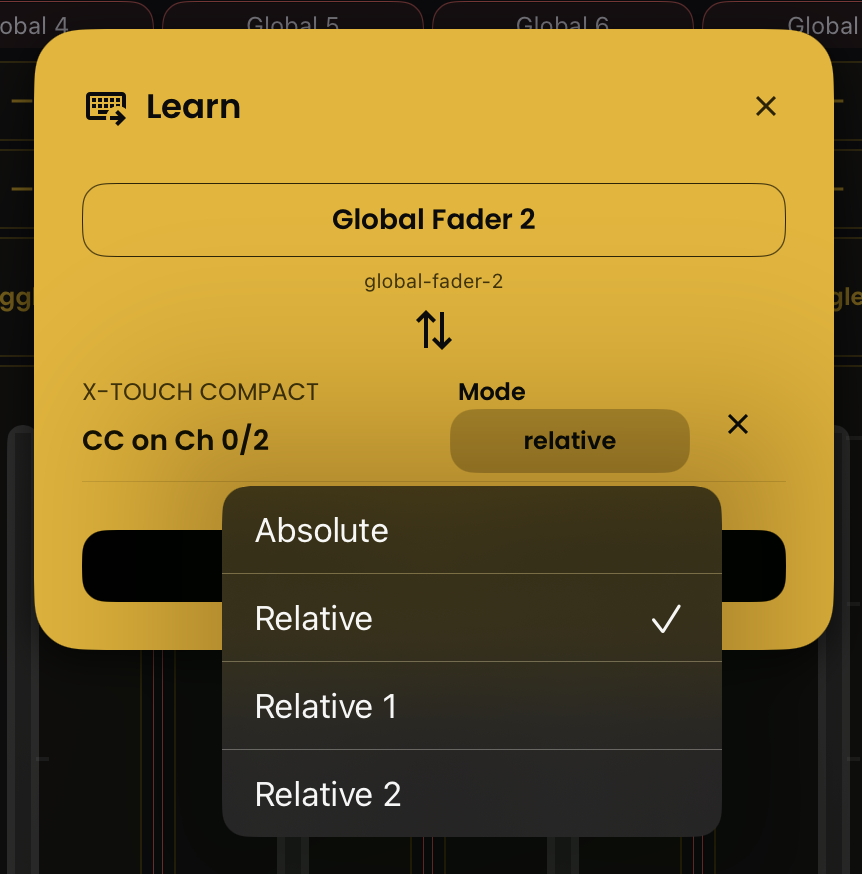
Available Modes:
- Absolute - Standard mode where the controller sends exact values (0-127). Use for traditional faders with fixed start/end points.
- Relative - Incremental mode for endless encoders that send direction and speed information
- Relative 1 - Alternative incremental mode for endless encoders (different encoding format)
- Relative 2 - Alternative incremental mode for endless encoders (different encoding format)
Configuring CC Modes:
- Long-press the mapped control in Blackout
- Select the Mode dropdown on the CC event
- Try different relative modes if your endless encoders or faders aren't responding correctly
- Test the control to verify proper behavior
Trial and Error
Finding the right CC mode often requires trial and error. If your encoder or fader isn't responding correctly, try switching between the different relative modes until you find the one that matches your controller's output format.
OSC Connection
Open Sound Control (OSC) is a modern networking protocol that allows different devices and software to communicate using human-readable messages. Unlike MIDI, which is limited to discrete values, OSC supports floating-point data, enabling more precise and dynamic control.
Blackout supports OSC 1.1, providing seamless integration with external devices for real-time communication. OSC messages follow a structured address pattern, making it easy to map functions directly to Blackout.
For more details on OSC, see the official specification: https://ccrma.stanford.edu/groups/osc/spec-1_0.html.
Best for:
- Software integrations (media servers, timecode systems)
- Custom control surfaces (TouchOSC, web interfaces)
- High-precision control values
- Multi-operator workflows
- Network-based control across multiple devices
OSC Settings
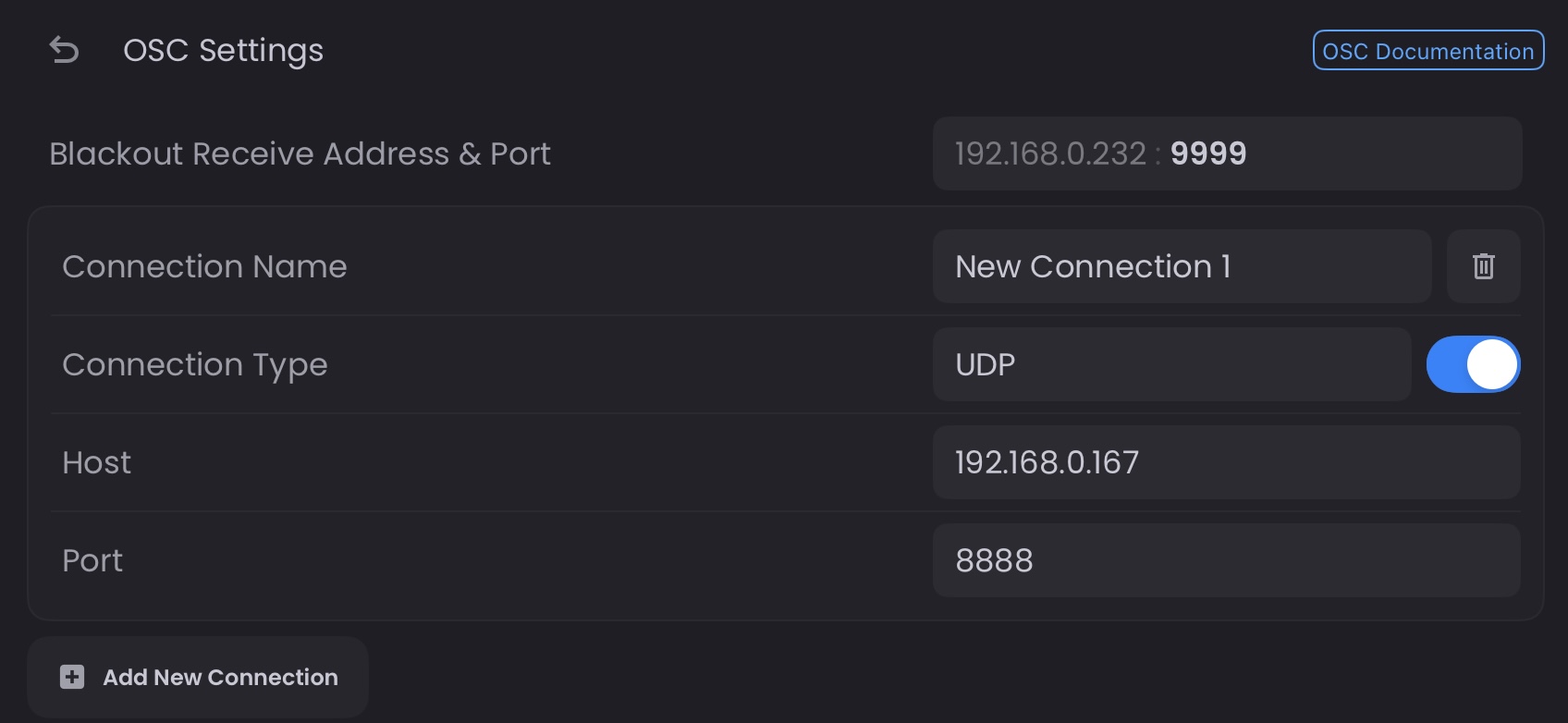
Configure OSC connection settings in Link Status → External Devices → OSC:
- Receiving Port - Port Blackout listens on for incoming OSC messages (default: 9999)
- Connection Name - Label for your OSC connection
- Connection Type - UDP or TCP protocol (TCP in development)
- Host - Destination IP address for outgoing messages
- Port - Destination port for outgoing messages
NOTE
Currently, Blackout only supports OSC output for fader movements.
View complete OSC command reference →
Best Practices
- Test all mappings thoroughly before a show
- Label your MIDI/OSC controllers clearly to match Blackout mappings
- Save Mapping Presets for different shows or operators
- Map
Disable DMX Outputto safely program without affecting live output - Keep backup mappings documented in case you need to reconfigure quickly