
Projects and Locations
Creating a New Project
Once you’ve signed into your account in the app, Blackout begins with creating (or choosing) a Project. If you are opening Blackout for the first time, it automatically prompts you to create a Project. After you’ve typed a name, touch Save.
Creating a New Location
Each Project is a folder that contains Location(s) for easy organization.
For example, let's consider a project named Top Gun. This project might include several locations:
Top Gun
- Aircraft Bunker
- Tarmac
- Penny's Bar
After you’ve created new Location for your Project, touch Save.
Import a Location
Alternatively, you can also import a Location. Press the Import button in the upper left hand corner, then navigate to where the file is on your iPad.
Managing Locations
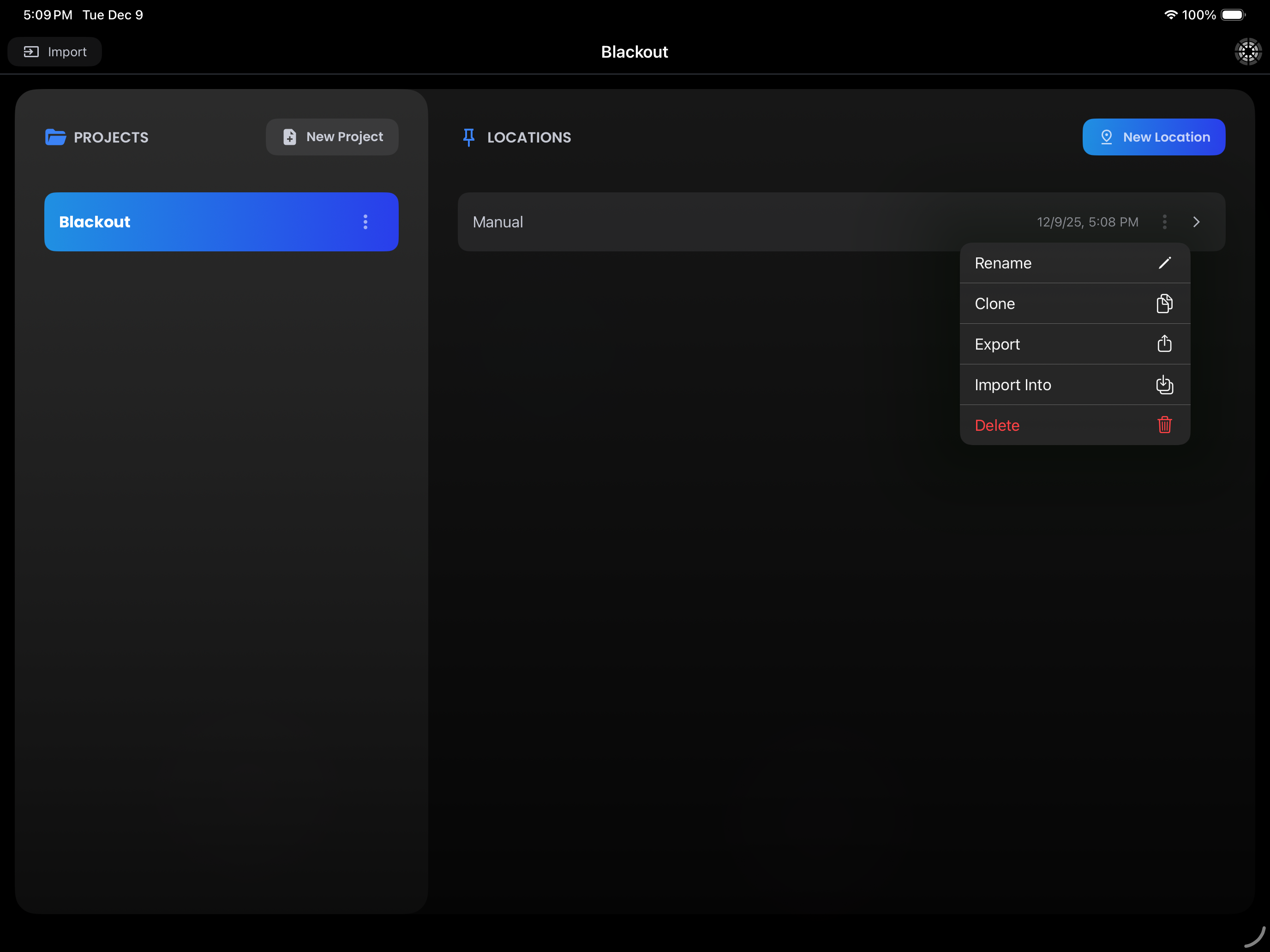
To bring up Location options, touch the three-dots (more_vert) on the Location. This will bring up a popup with options:
- Rename allows you to rename your Location.
- Clone is extremely useful if you already have valuable show data from a Truck Package or Rep Plot that you wish to copy over to a new file that you can then add to and edit.
- Export is your best means of backing up your data. Do this regularly.
- Import Into allows you to merge another showfile into this Location.
- Delete deletes your data. There is no undo, so make sure you really want to never see that file again.
TIP
Most Location data is independent. Changes to patched Fixtures, Groups, Looks, and Favorites in one Location do not affect other Projects or Locations.
However, some settings are global across all showfiles on your iPad:
- Effect Presets – Creating or editing presets updates them globally.
- Link Status – Protocol/output and device connections apply system-wide.
- Exception: DMX Input routing is per-Location and not global.
Workflow tip: Clone as you go. Jeff typically builds a blank showfile with his truck patch. For every new Location, he clones that base and starts fresh.
On a TV show, users who accumulate Favorites over time often clone the latest Location, then delete unneeded Looks and repatch Fixtures as needed.