Cloud Fixture Database
The Cloud Fixture Database is Blackout's comprehensive library with over 45,000 Fixture Profiles covering thousands of manufacturers and models. Whether you're working with moving heads, LED pars, wash lights, or specialty fixtures, you'll find professionally verified profiles ready to use.
SYNC FIRST!
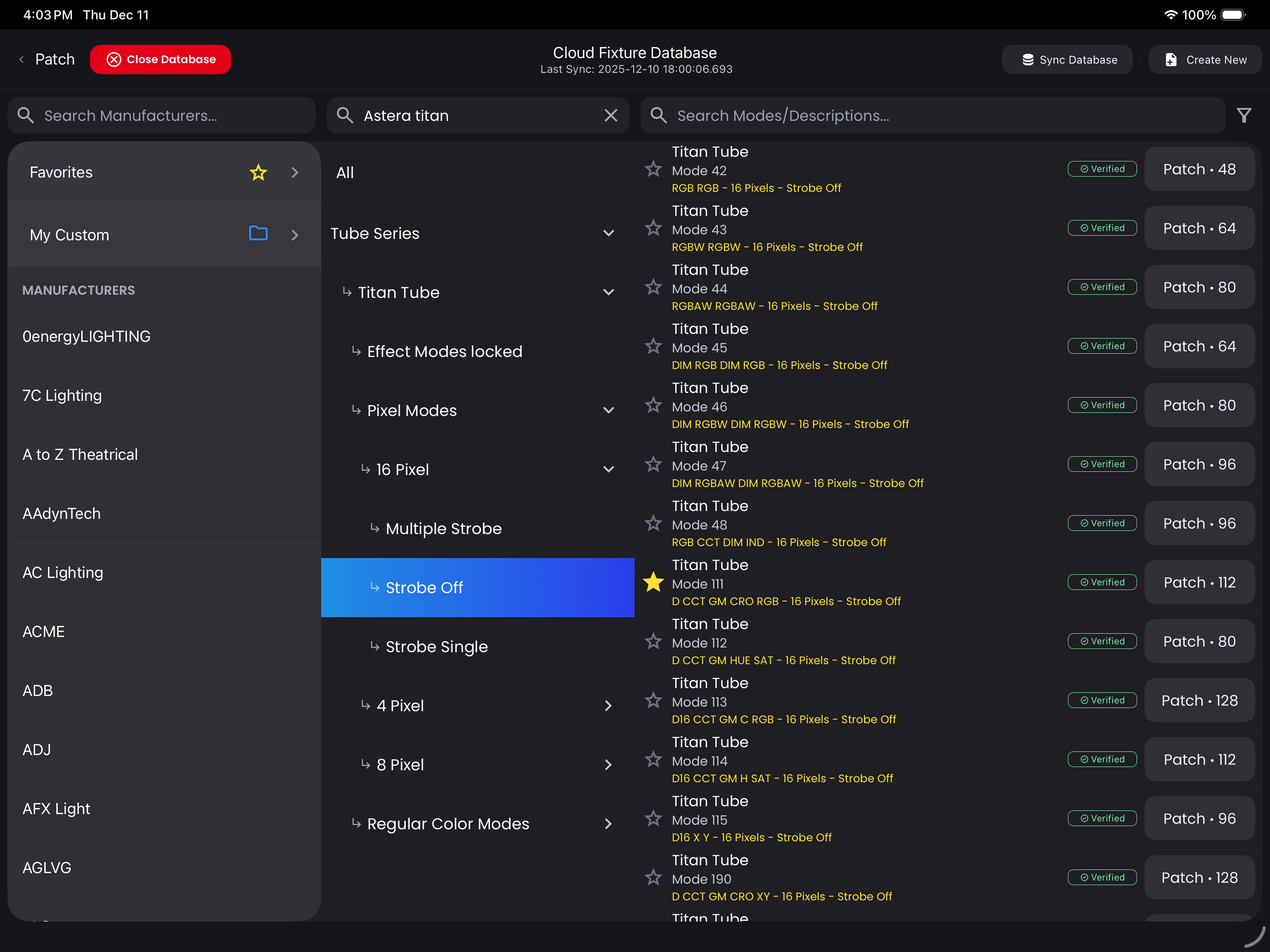
The first thing you want to do when you get to this screen is tap the Sync Database button in the top right corner. This downloads the latest Fixture profiles to your device. The database is updated daily with new and improved profiles, so sync regularly to access the latest additions.
Finding Your Fixture
Blackout makes it easy to find the right profile with three powerful search filters:
- Manufacturers - Browse by brand name or search directly
- Fixtures - Filter by specific model names (this is a catch all search so you could also search "ARRI Skypanel")
- Modes/Descriptions - Search the exact mode or profile
Search Tips:
- Start typing in the Manufacturer or Fixture Name search box
- Blackout instantly filters and displays matching results
- Combine filters to narrow down your search
- The third column shows all available profiles matching your criteria
Generic Profiles
If you can't find your specific Fixture model, search under the Manufacturer called Generic. This section contains many common profiles that match standard fixture types:
- LED tape (RGB, RGBW, RGBAW, RGBA+WW)
- Single-channel dimmers
- Standard moving light configurations
- Common color mixing systems
Profile Quality Indicators
Verified Profiles
Profiles with a Verified badge have been thoroughly tested by Blackout's Fixture Database Team. These profiles are confirmed to work correctly and accurately represent the fixture's capabilities.
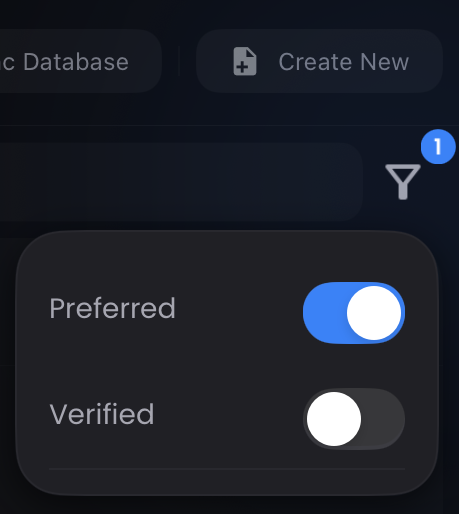
Preferred Profiles
Toggle the Preferred switch to filter results to Jeff's recommended profiles. When multiple modes exist for a fixture, this shows you which profile typically works best in Blackout.
Cloud Favorites
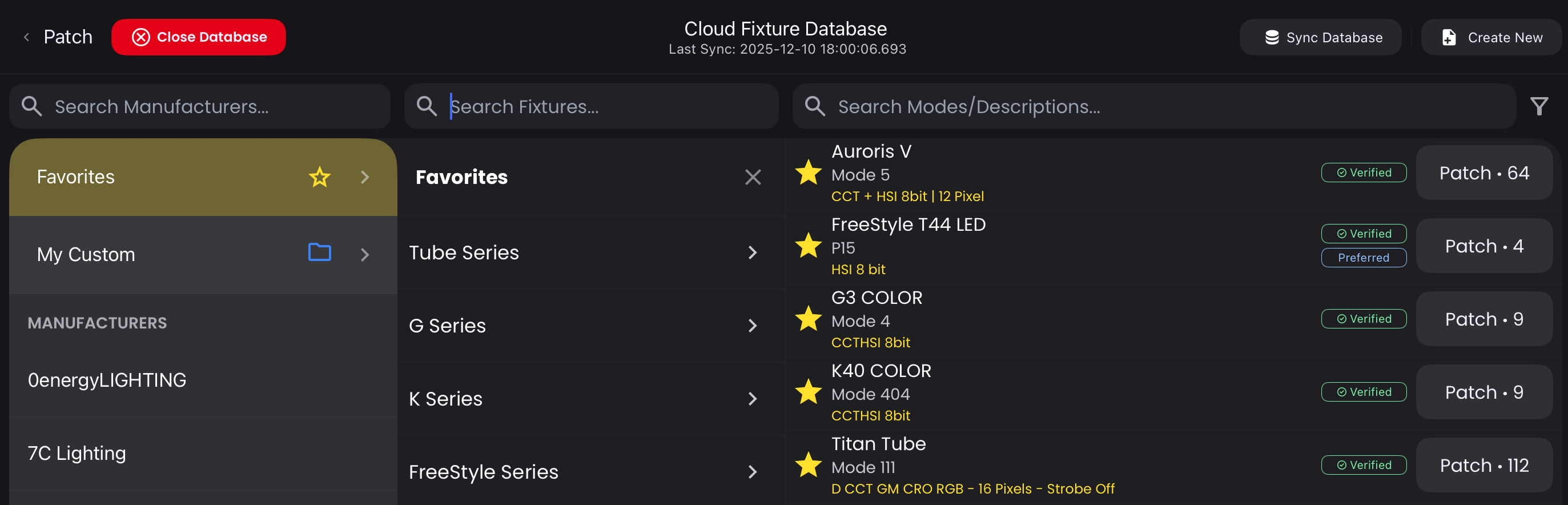
Save time on future projects by starring frequently-used profiles. Your Cloud Favorites appear at the top of the Manufacturers column, giving you instant access without searching the entire database every time.
To add a favorite: Tap the star icon (⭐) next to any profile
Patching a Fixture
Once you've found the right profile:
- Select the Mode/Description you want to use
- Tap the
Patch (#)button on the right- The number in (#) indicates the DMX footprint (how many channels the fixture uses)
- Finish patching your Fixture in the Visual Patch Screen
- The profile is added to your My Show Fixtures
Can't Find Your Fixture?
If the profile you need isn't in the database:
- Create a Custom Profile - See the Custom Fixture Profiles guide for a complete walkthrough
- Request a Profile - Submit a request through the Blackout Help Center and our team will add it to the database
TIP
When requesting a profile, include the manufacturer name, fixture model, and a link to the DMX chart from the manual. This helps us create an accurate profile faster.